

Silent Reading - Digital Administration
The Silent Reading measure can be administered digitally to a whole class, a small group of students, or an individual student. The test administrator can use a computer or touchscreen device (tablet-size or larger), and each student will need their own computer (laptop/desktop) or touchscreen device (iPad, tablet, or Chromebook).
Prepare Students for Silent Reading Administration
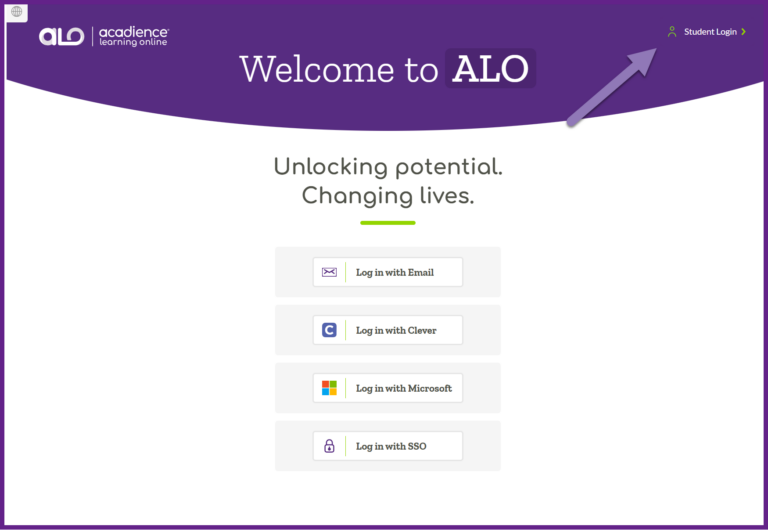
Have students prepare by opening a browser window on their individual device and navigating to https://alo.acadiencelearning.org. In the top right corner click “Student Login.”
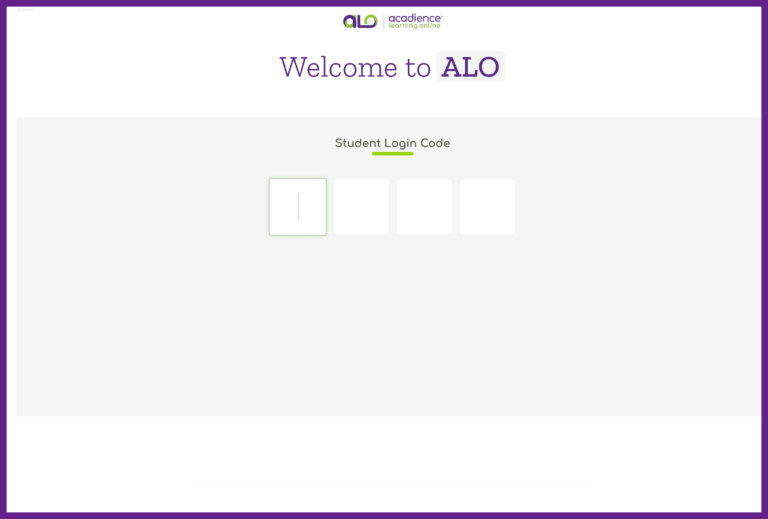
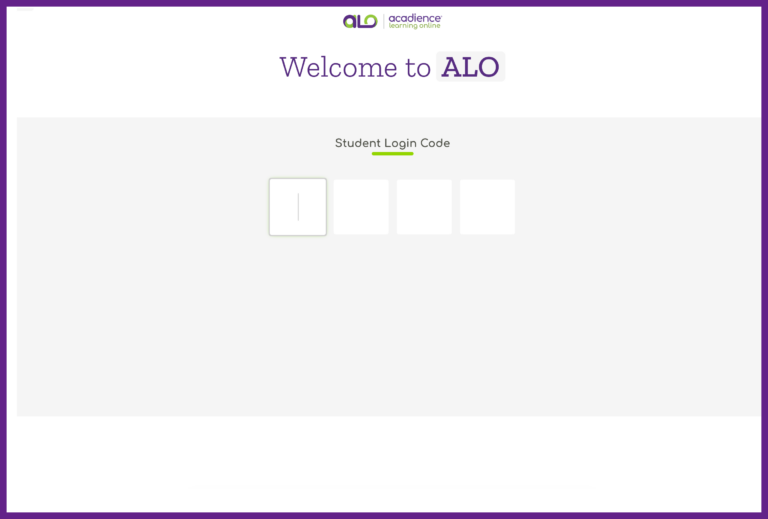
The students will see the Student Login Code screen. Instruct them to wait here for the next direction.
Silent Reading Digital Assessment – Assessor Set Up
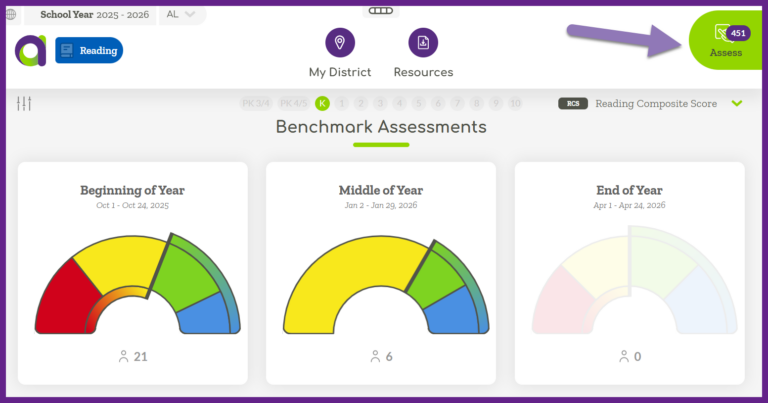
If you are assessing a group of students, log into ALO, click on the Assess tab in the top right corner.
You can use the filter to select a specific school and/or class (for users with school/district-wide access).
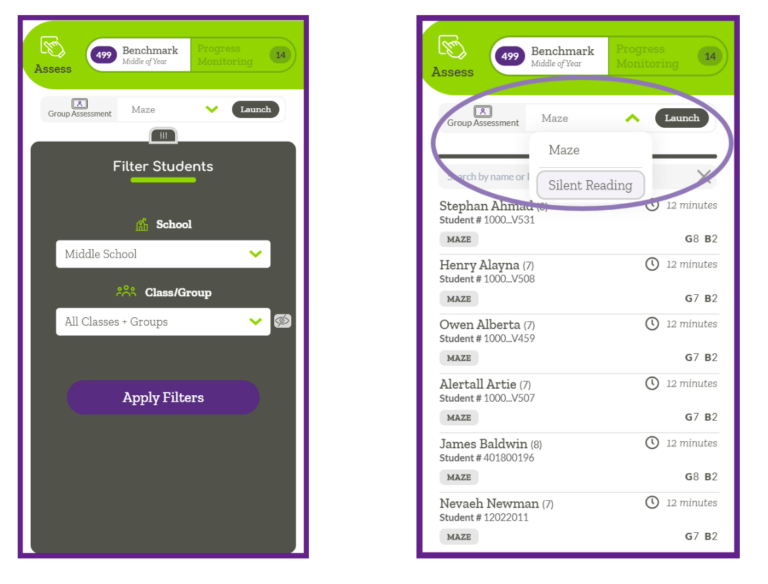
You will see a list of available students displayed. Select only those students who will be completing the assessment and click “Confirm Students.” You can then skip ahead to the “Student Login Code” section below.
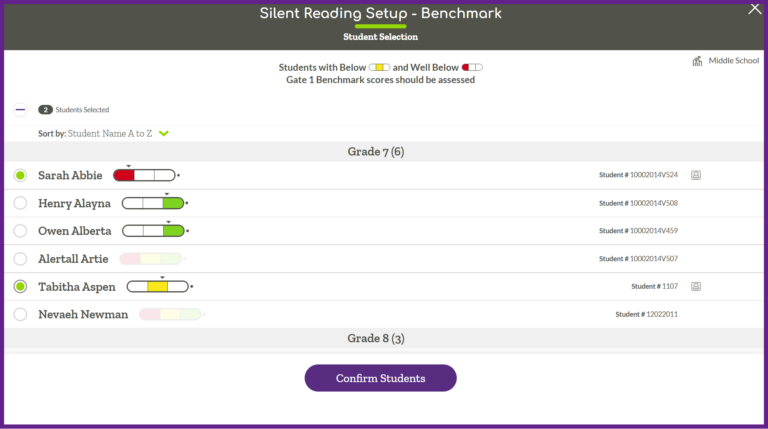
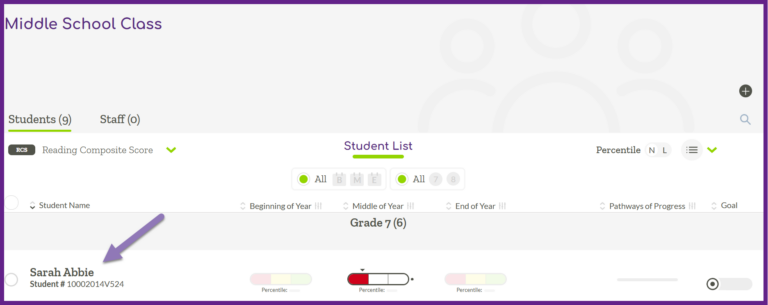
If you are assessing an individual student, Log into ALO, navigate to the Student List View. Click on the individual student you want to assess.
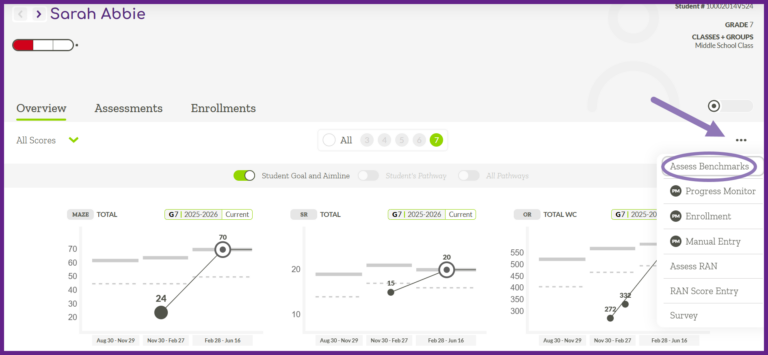
On the right side click the three dot menu, and then select “Assess Benchmarks.”
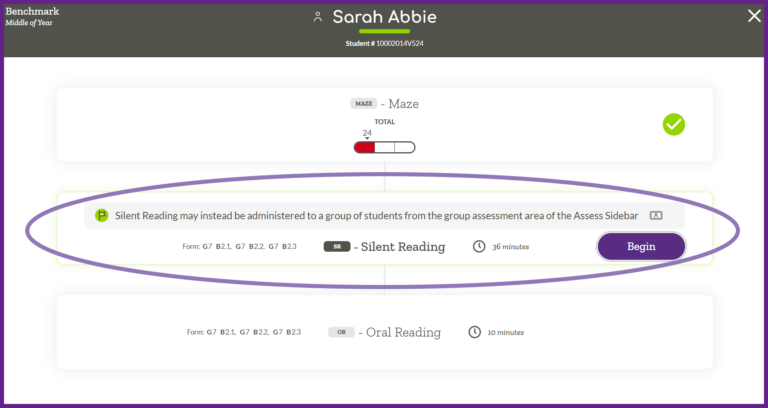
Select the Silent Reading measure and then click the “Begin” button.
Student Login Code
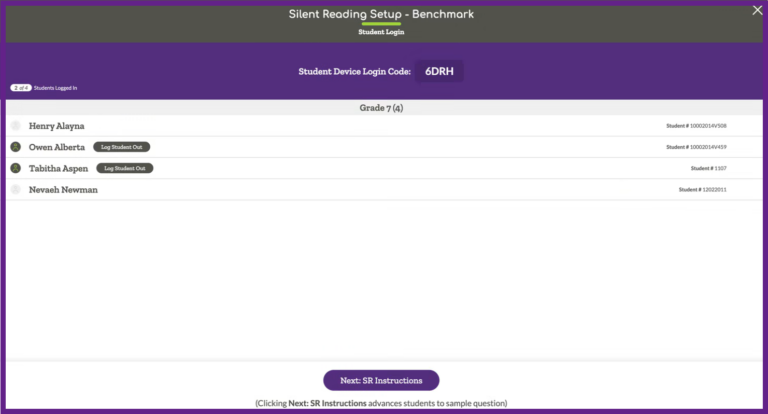
When all students are on the Student Login Screen and the assessor has confirmed the list of students, at the top of the window click “Get Student Login Code.” Note: the code expires after 60 minutes.
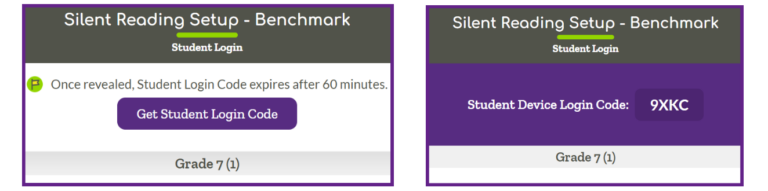
Provide the 4-digit Student Login code to the students. They will enter the code on their device.
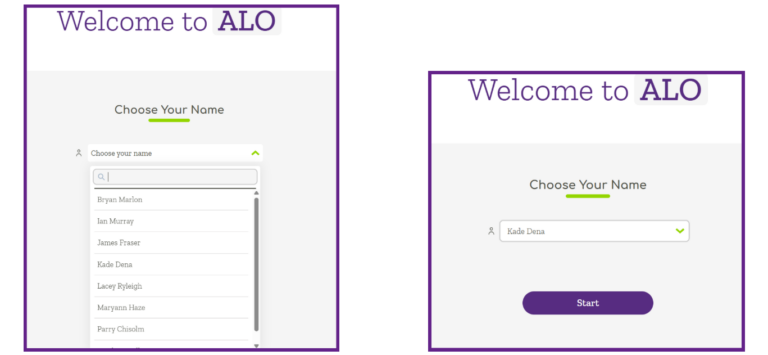
Have the students select their name from the dropdown list. Once their name is selected they will click “Start.”
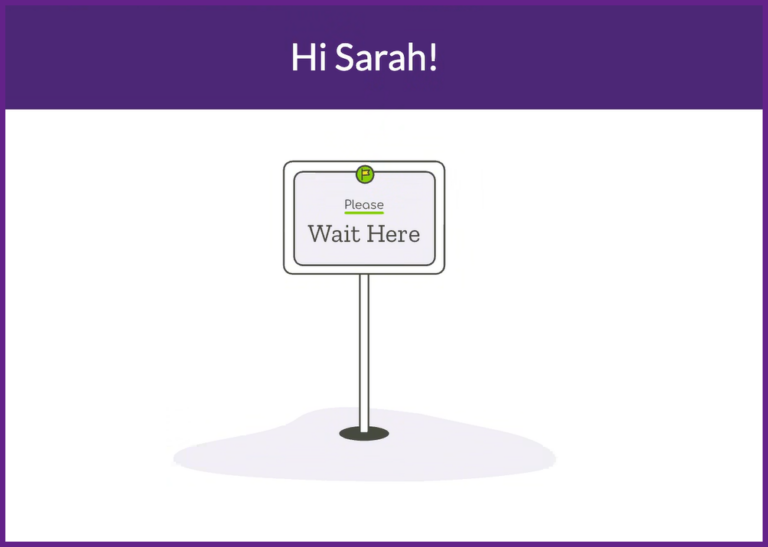
Students will remain on the “Wait Here” screen.
As students enter the code and select their name, ALO will update to show which students are ready to proceed. Once all students have logged in click “Next: SR Instructions” to advance students to the sample question.
Assessor
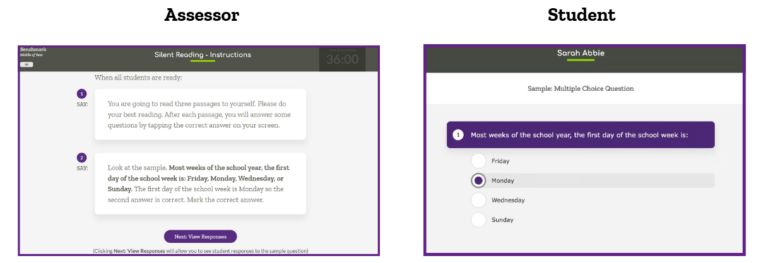
Proceed to read the directions verbatim to students and walk them through the practice activity. Students should select their answer. Click “Next: View Responses” once all students have selected an answer. Make sure all students have selected Answer 2 (Monday) before proceeding.
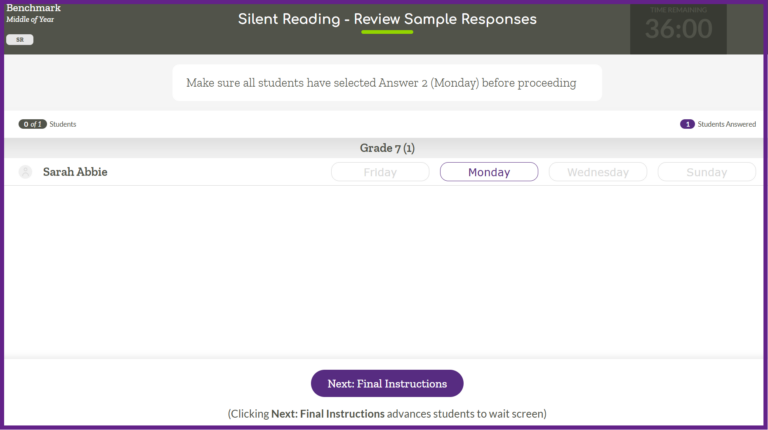
Once all students have selected Monday as their answer, click “Next: Final Instructions.”
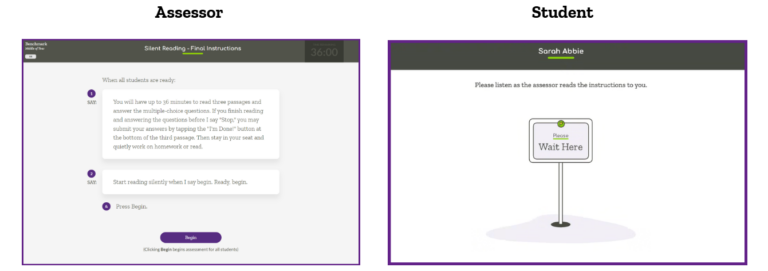
Proceed to read the remaining directions verbatim to students. Click “Begin” to begin the assessment for all students.
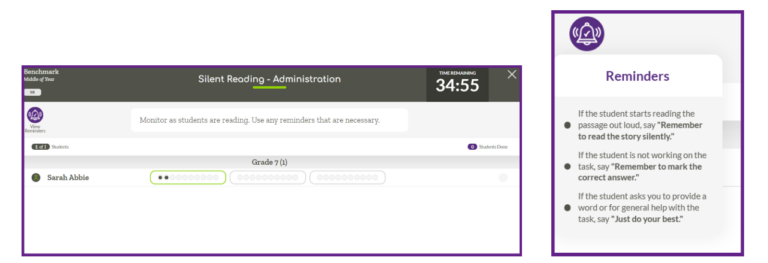
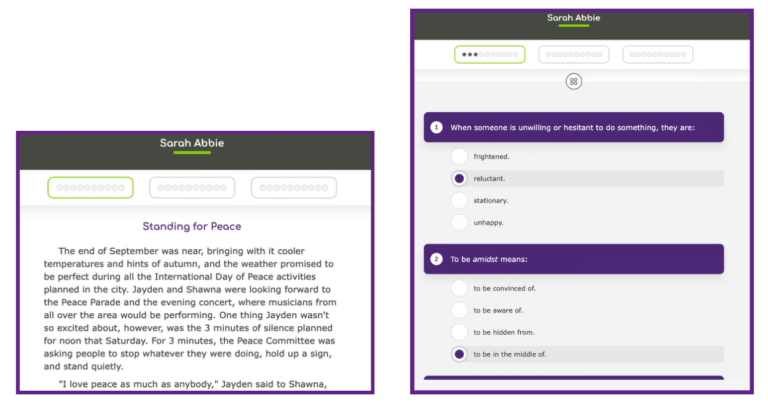
Students have 36 minutes to read the three passages and answer the multiple-choice questions. Monitor as students are reading. The assessor can see the timer and view student progress. The green box indicates which passage the student is currently reading and the grey circles indicate which questions have been answered. Clicking on “View Reminders” will allow you to prompt students as needed.
Assessor
Student
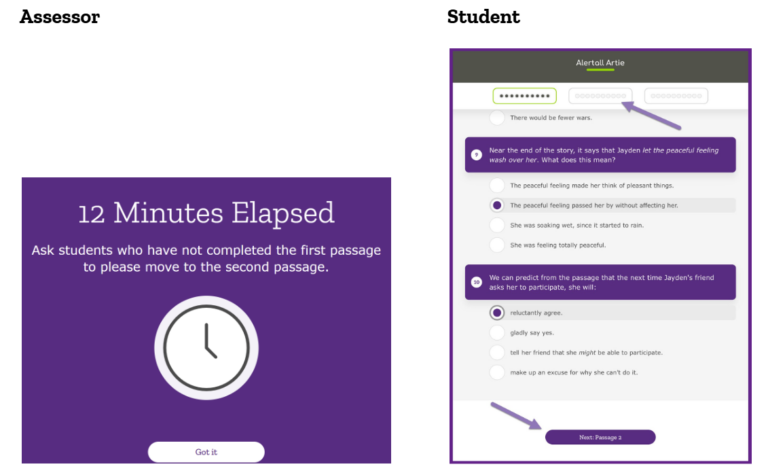
At the end of 12 minutes, ALO will prompt you to ask students to move on to the second passage. Students can either scroll to the bottom of the passage and click “Next: Passage 2” or click the middle box at the top of their screen. After you remind students, click “Got it” to return to the administration window to continue to monitor student progress.
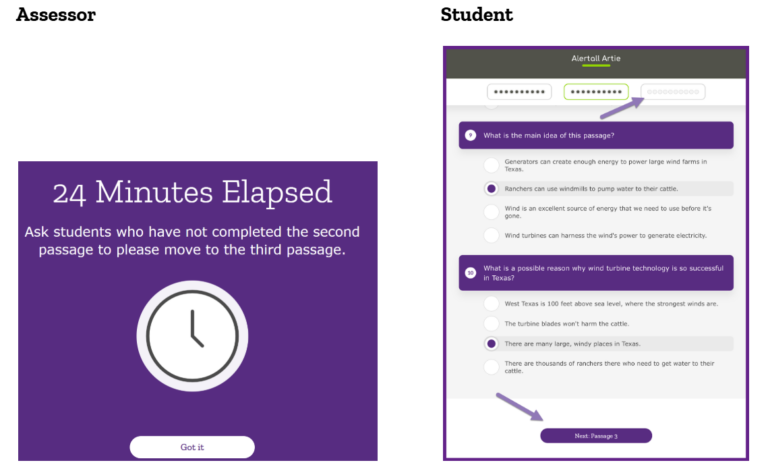
At the end of 24 minutes, ALO will prompt you to ask students to move on to the third passage. Students can either scroll to the bottom of the passage and click “Next: Passage 3” or click the last box at the top of their screen. After you remind students, click “Got it” to return to the administration window to continue to monitor student progress.
Students will complete the assessment on their devices. When students finish all three passages they can click the “I’m Done” button at the end of passage 3. ALO will prompt the student to confirm they are finished. The student will click “Yes, I’m Done.”
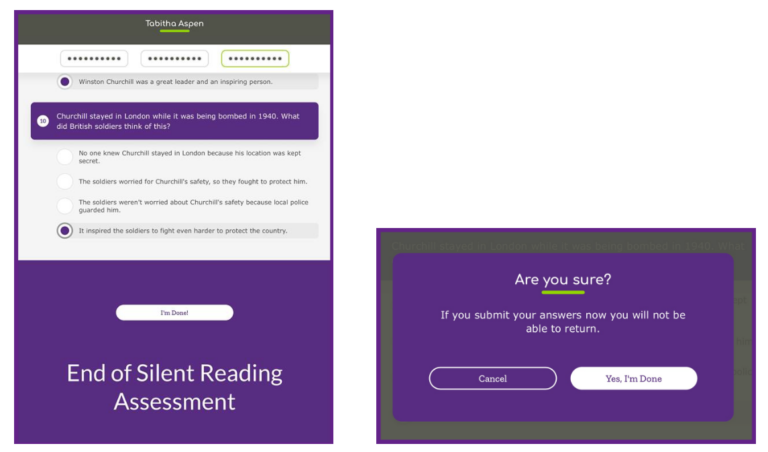
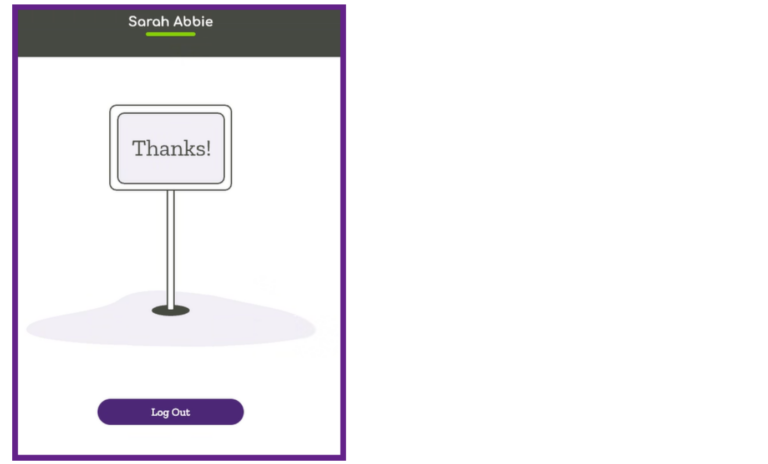
ALO will display the “Thanks” sign for the student, and they can click “Log Out.”
If students are still working when the time runs out ALO will automatically close out of the assessment for the student and display the “Thanks” message.
Once time runs out, or all students are done, you can click the “X” in the top right corner to close the Silent Reading – Administration window.

Note: if you close the window before time runs out and not all students are finished ALO will ask you to confirm if you want to close the assessment.
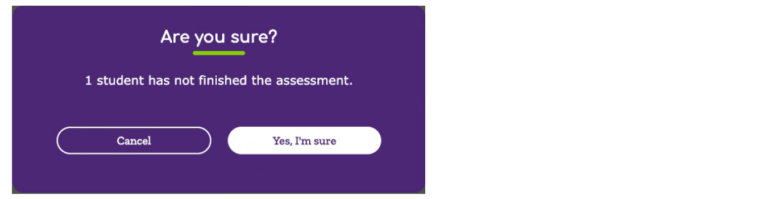
Clicking “Yes, I’m sure” will close your administration window and you will no longer be able to view student progress. Students will be able to continue working until time runs out.
Assessment results are available immediately for review in ALO.