

Administering Assessments in ALO
On a supported touchscreen enabled device, launch the ALO PWA. Make sure the correct assessment is selected using the Assessment Button. Note: This step will only apply if you are using ALO for multiple assessments. Click the green Assess sidebar.
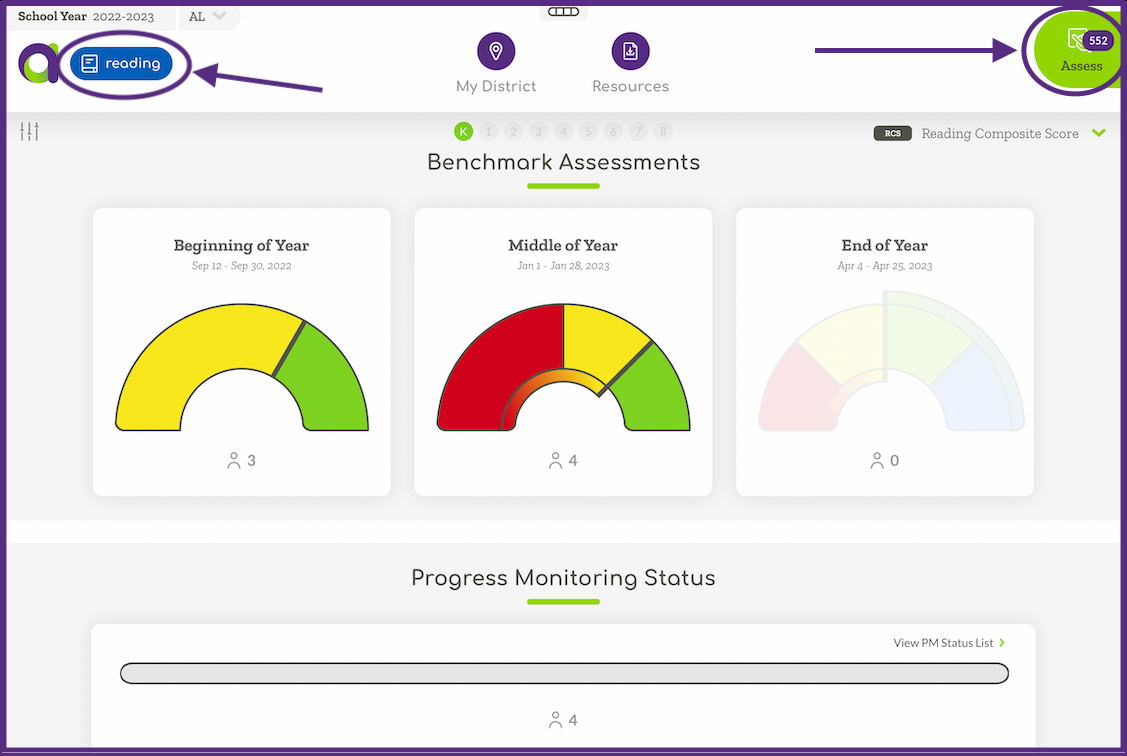
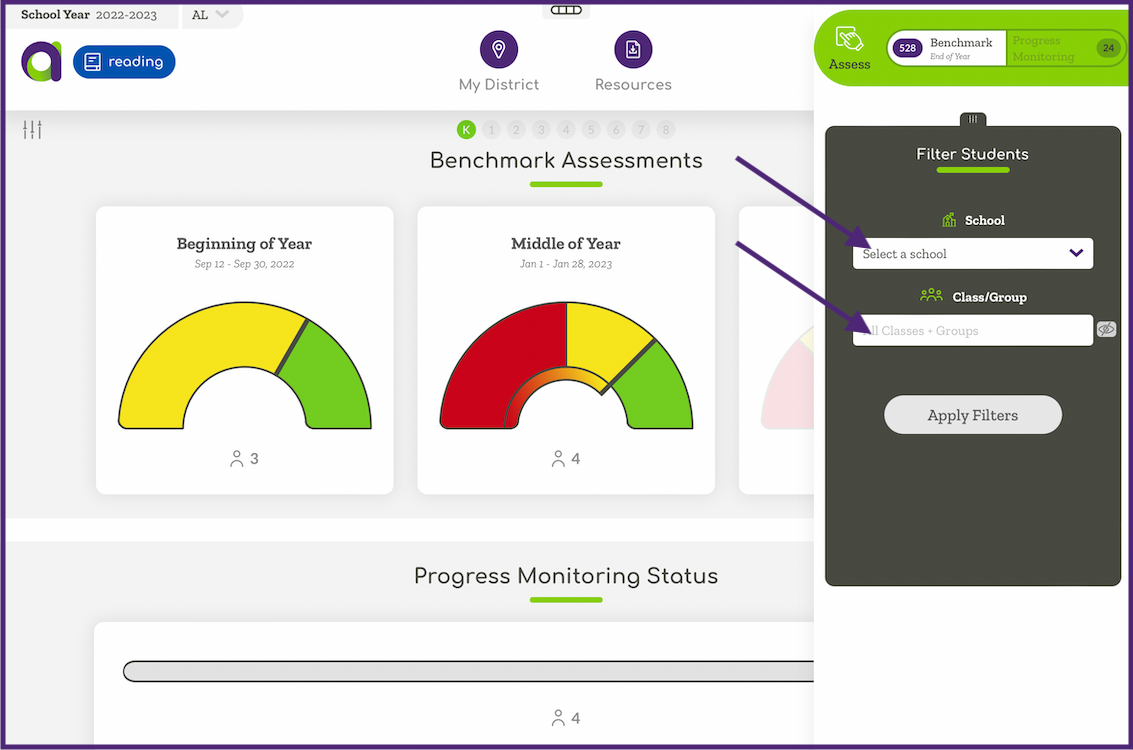
You will then be able to select whether you will be administering a Benchmark or Progress Monitoring assessment. Use the filter option to filter by school and/or class/group if appropriate.
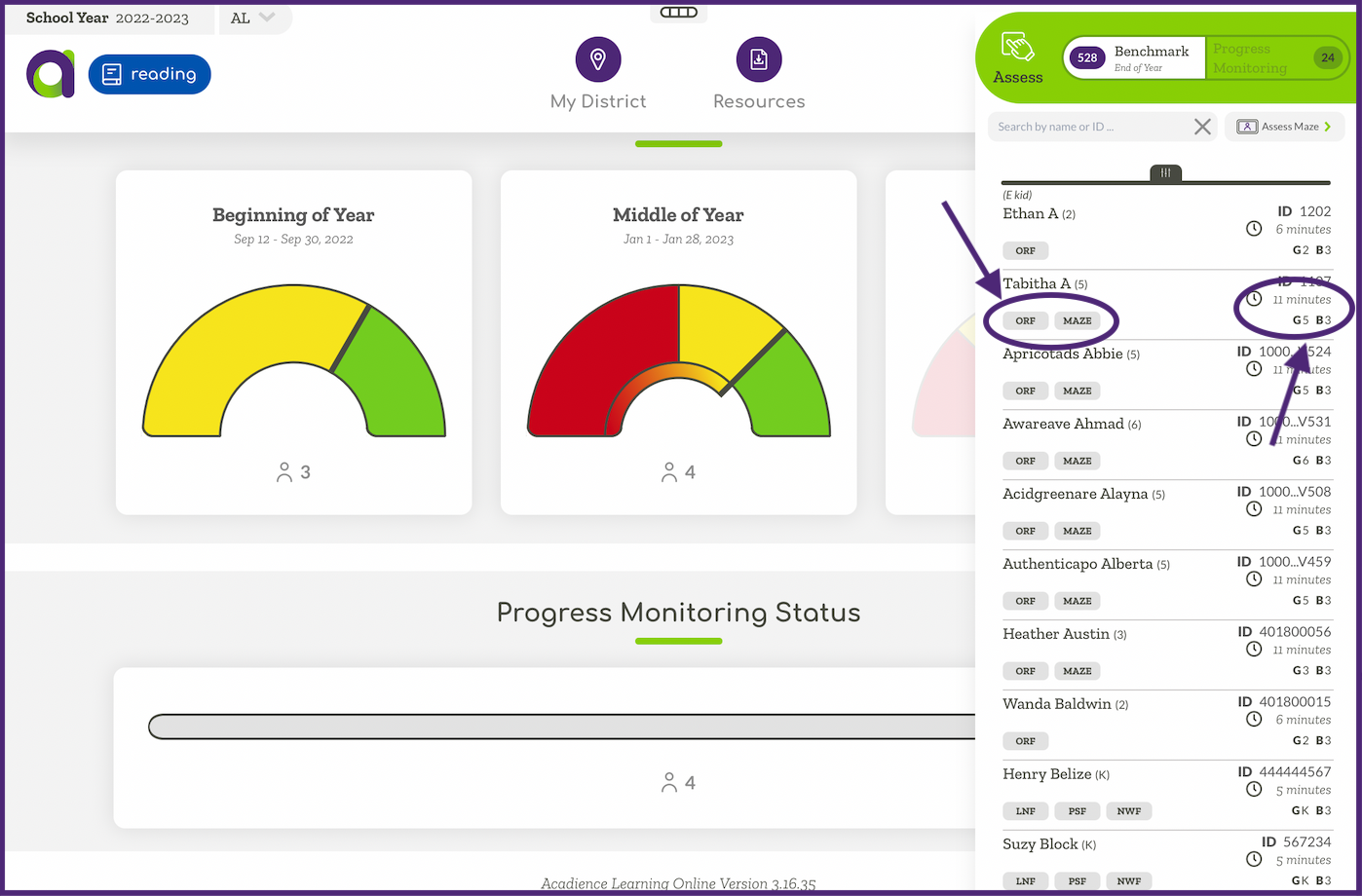
The students due for benchmark assessments will appear in the list. The measures due for benchmarking are listed under each student's name. On the right hand side the anticipated time and forms required for administration are listed. Note: the number after G corresponds to the grade level (i.e., G5 would be grade 5) and the number after B corresponds to the form (i.e. B3 would be Benchmark form 3). If a measure is invalidated, you will need to reassess using alternate forms. In this case, the form would be listed as PM, with the next available form number (numbered 1-20 ).
Click the student whom you would like to assess.
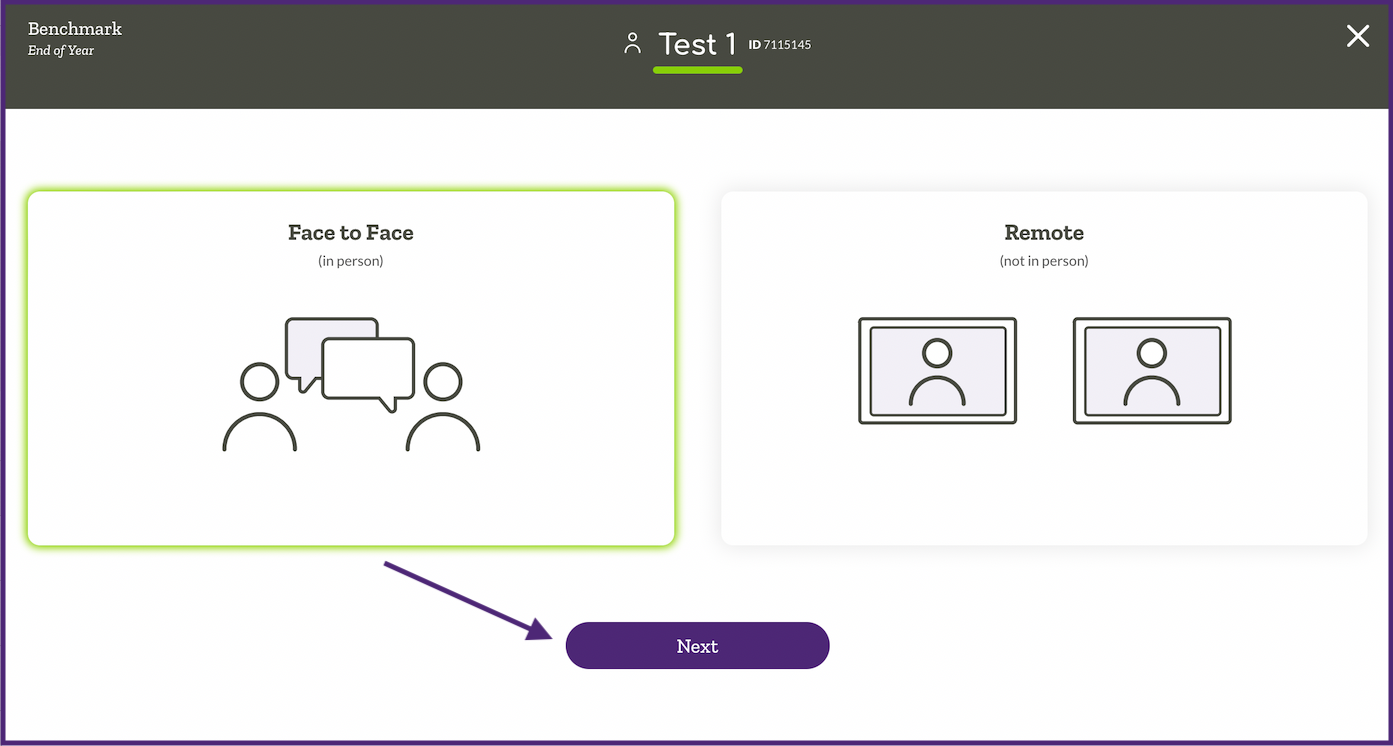
Once a student is selected, you will select how the assessment will be administered. Click the corresponding option and click Next.
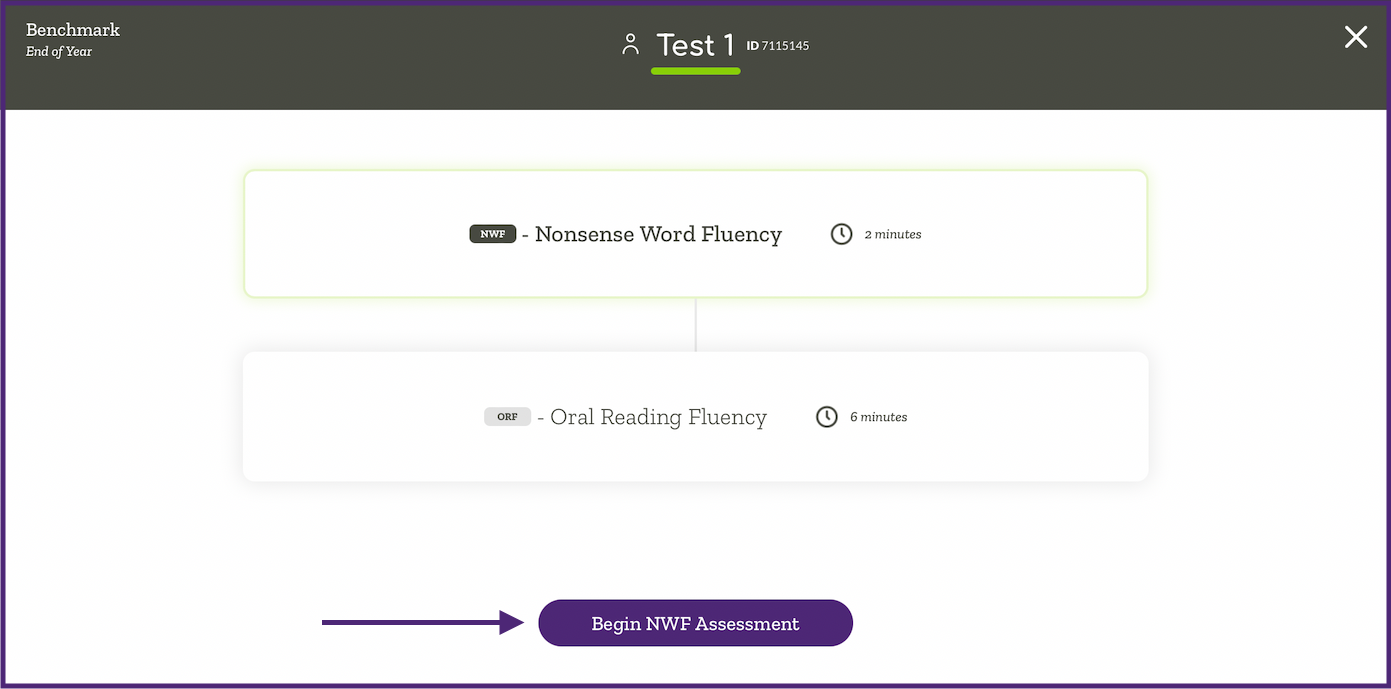
The system will display the measures that are due. As a default, the first measure due is selected. Click Begin Assessment.
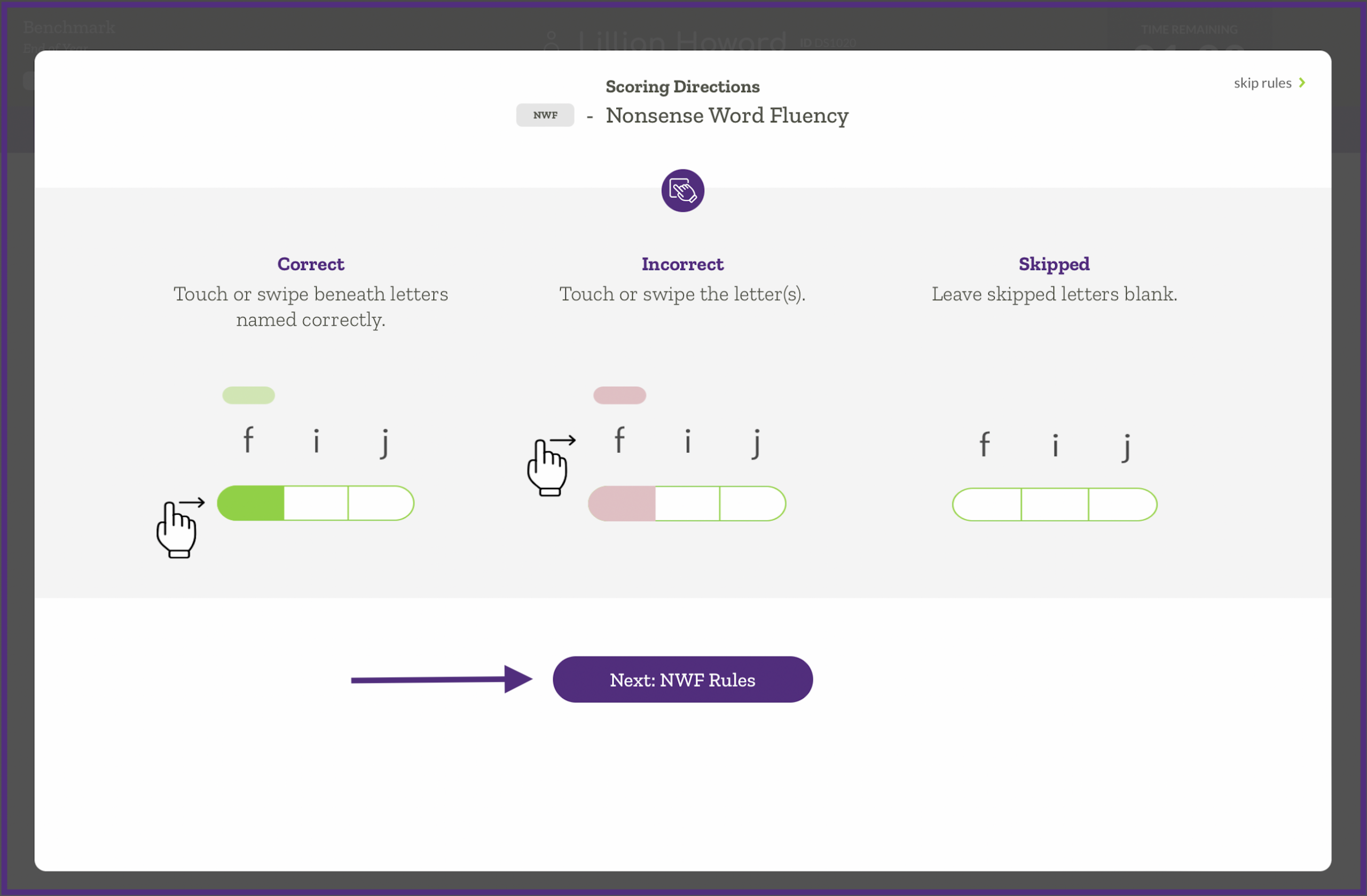
Review the scoring directions for the measure. Click Next: to see the scoring rules for the measure.
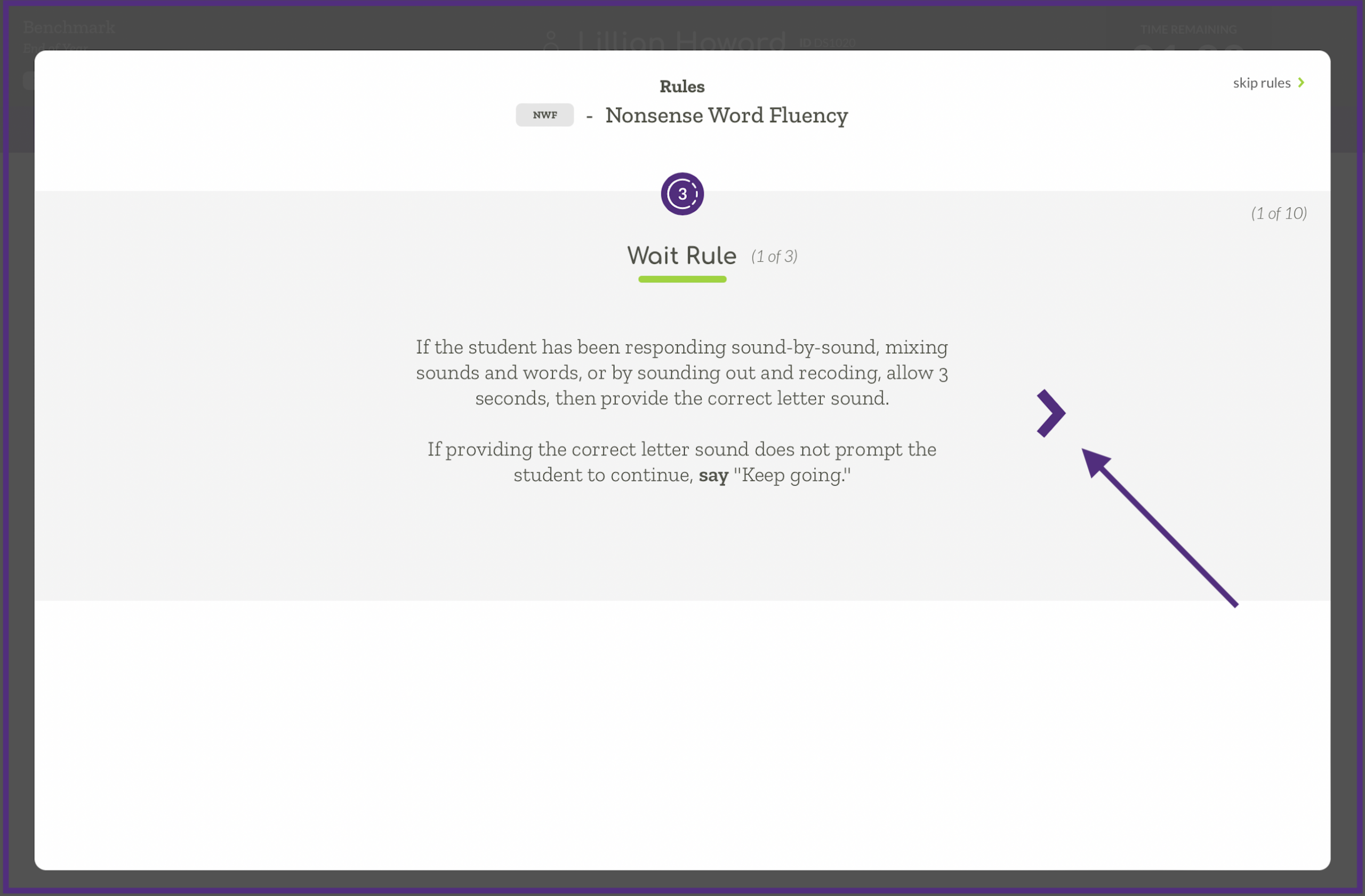
You can review the wait rule(s), discontinue rule(s), and reminder(s) (if applicable) for the measure. To advance through the rules click the purple >. After reviewing the rules click Next.
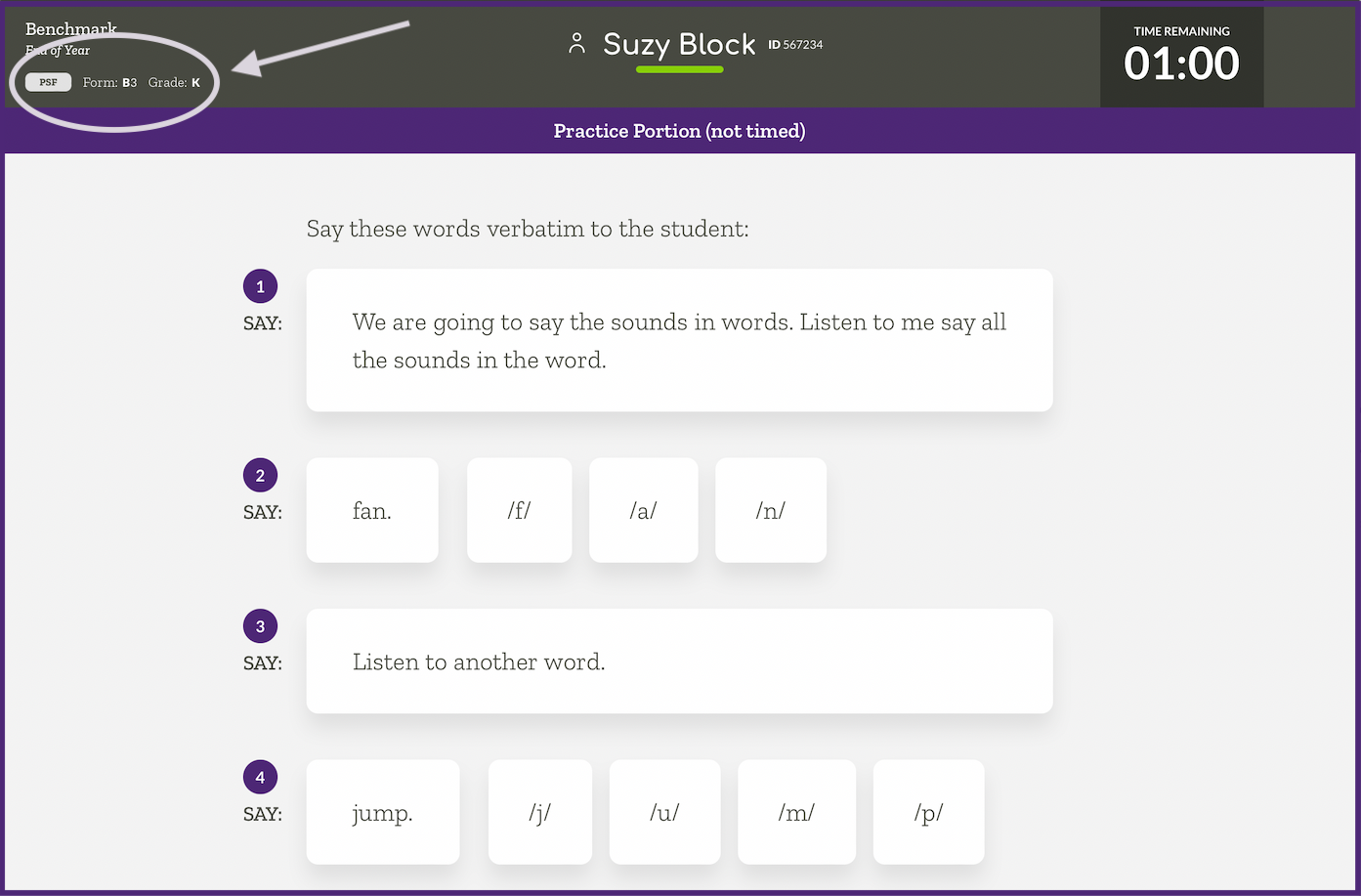
On the Practice Portion, the measure and forms are displayed in the top left corner. Ensure you have the corresponding student materials available (if applicable). Follow the directions on the screen to administer the measure.
Once the measure is completed follow the on screen prompts to administer remaining assessments.