
Editing Scoring Marks
ALO Digital Administration – Editing Scores
When administering an Acadience measure digitally, the assessor will have the option to edit scoring marks during testing and immediately after the measure administration. After measure results have been submitted, scores can no longer be edited. If the assessment results are invalid, the measure can be invalidated so that the student can be retested.
Editing Scores During Testing
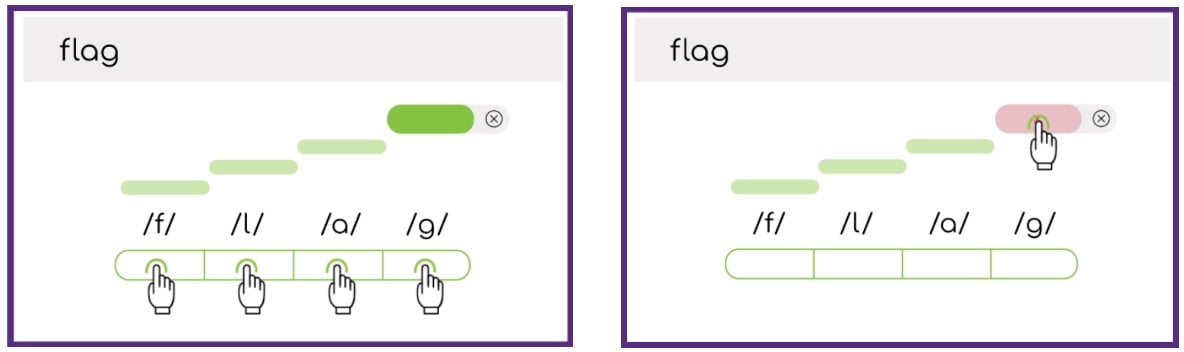
While administering a measure, the assessor can remove or change a scoring mark. To change a scoring mark, the assessor can tap the mark to change it from correct to incorrect, or from incorrect to correct.
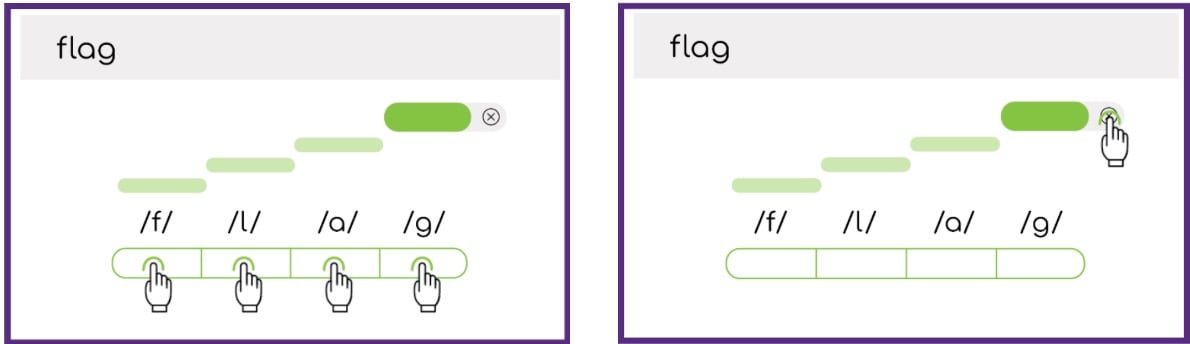
To remove a scoring mark, the assessor can tap on the “x” icon.
Editing Scores After Testing
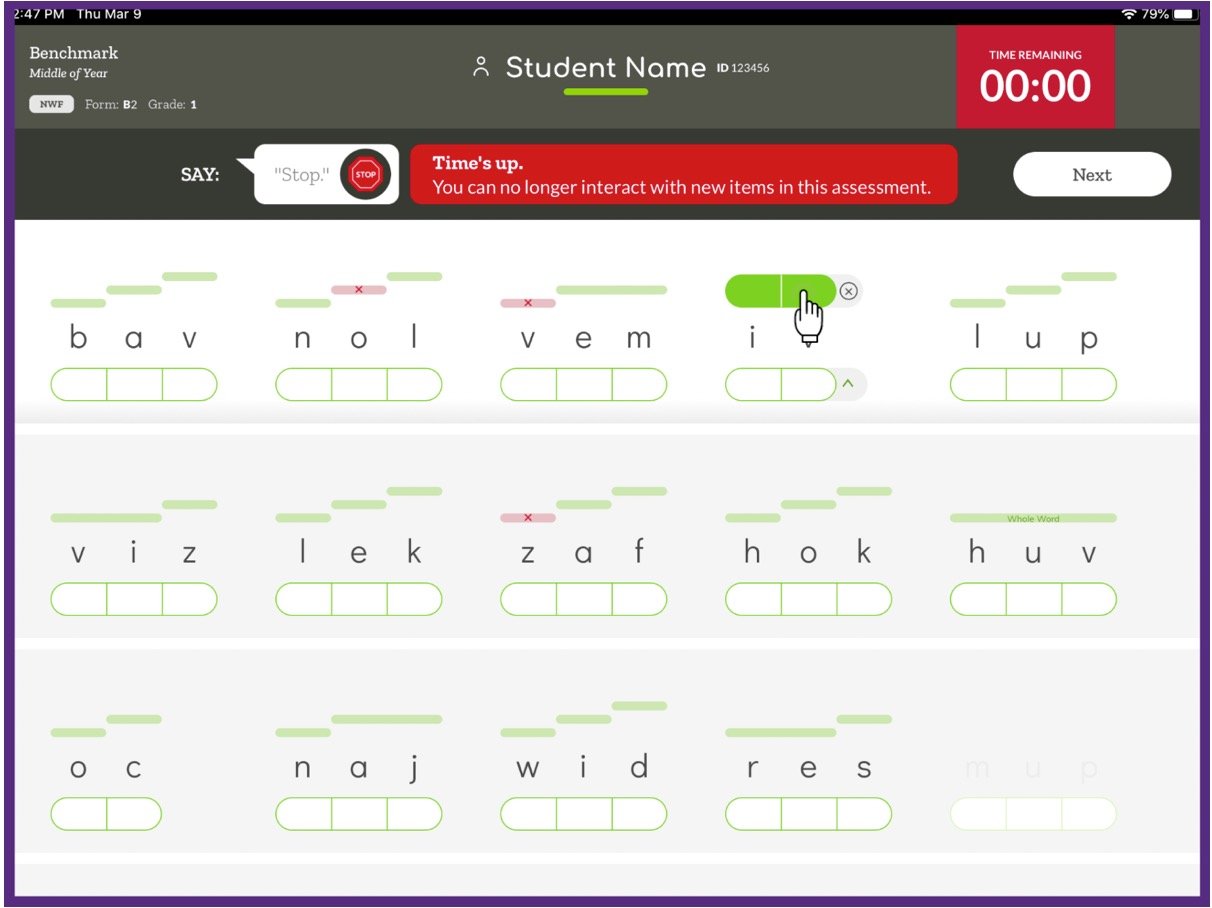
Immediately after time runs out for a measure administration, the assessor will have the opportunity to review scoring marks and make changes if needed (using the options described above).
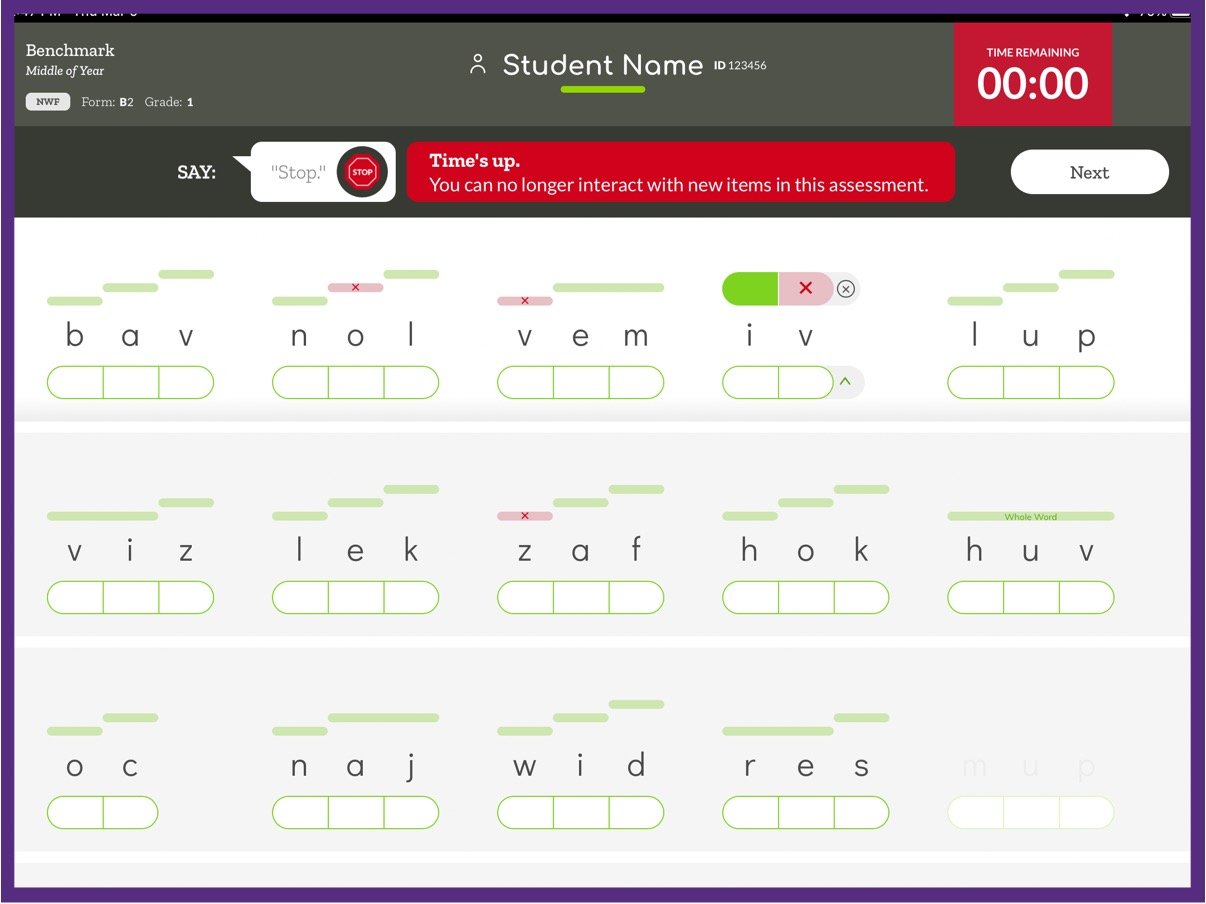
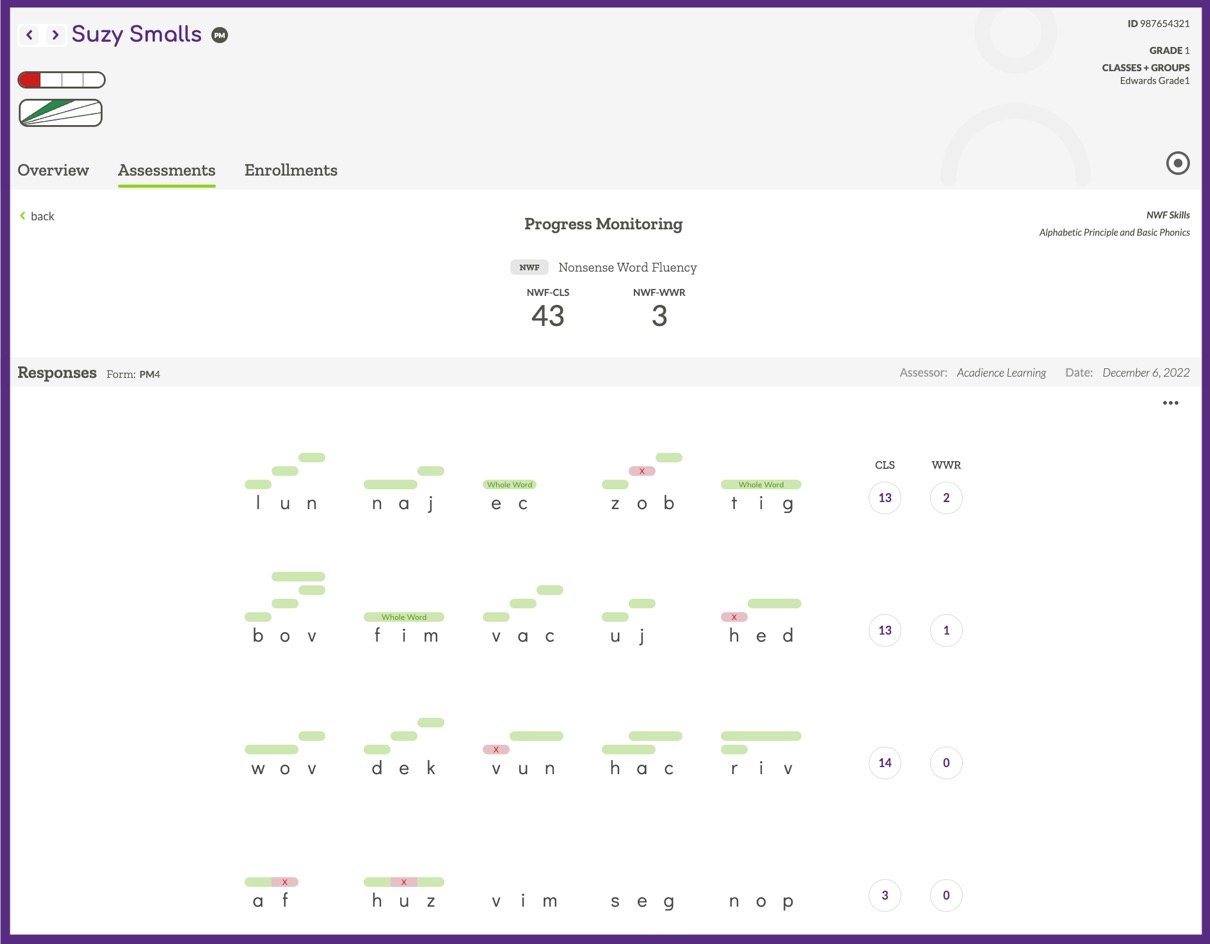
After the measure results are submitted, scores for the measure can no longer be edited or changed. The item-level details for the measure administration will be available from the Student Assessment Tab (after selecting the specific measure and time point).