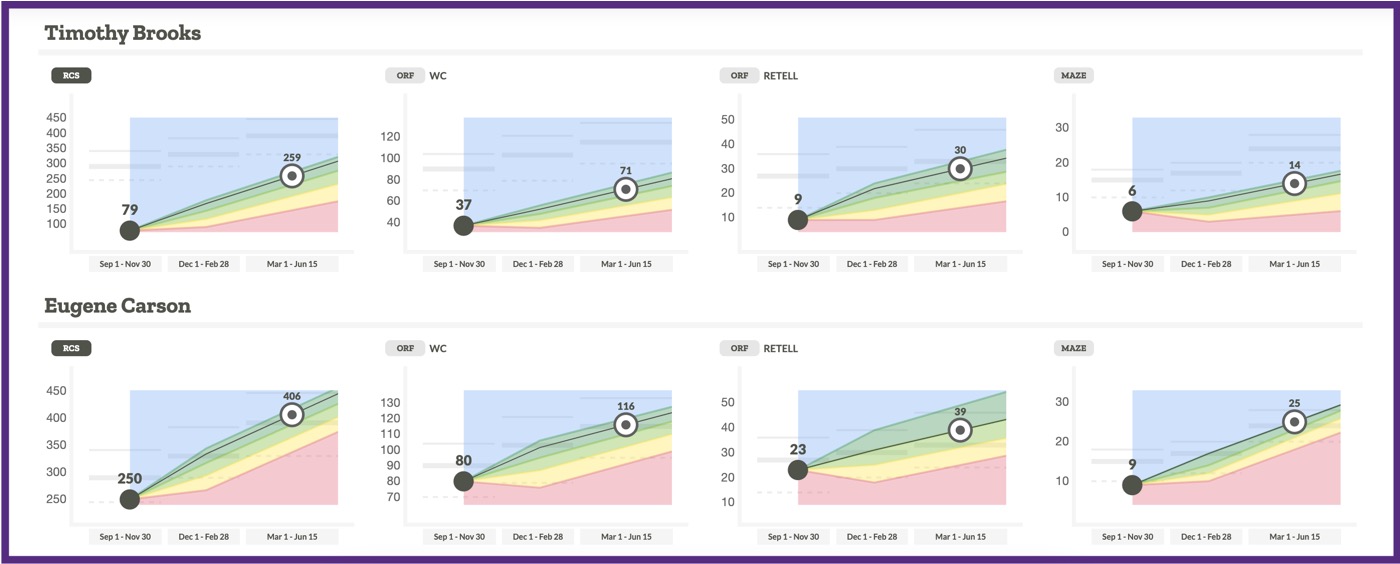

Multi-Select Tool
ALO Multi-Select Tool
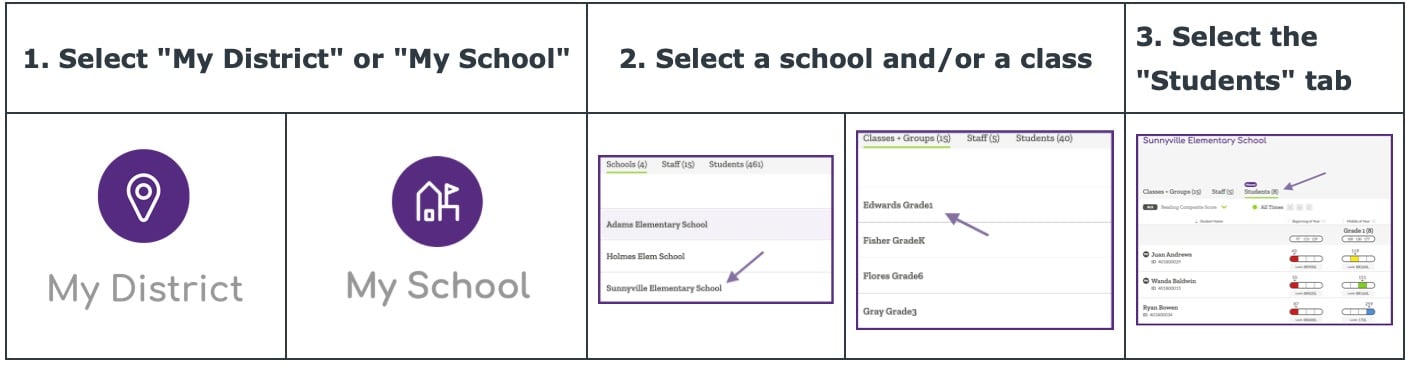
To use the Multi-Select Tool, first navigate to the Student List View following the directions below. Note that you can pull up a student list at the group, class, school or district level.
To access the multi-select options, click on the open circle in the header row, or next to select students. You can add or remove students that are selected by clicking on the circles.
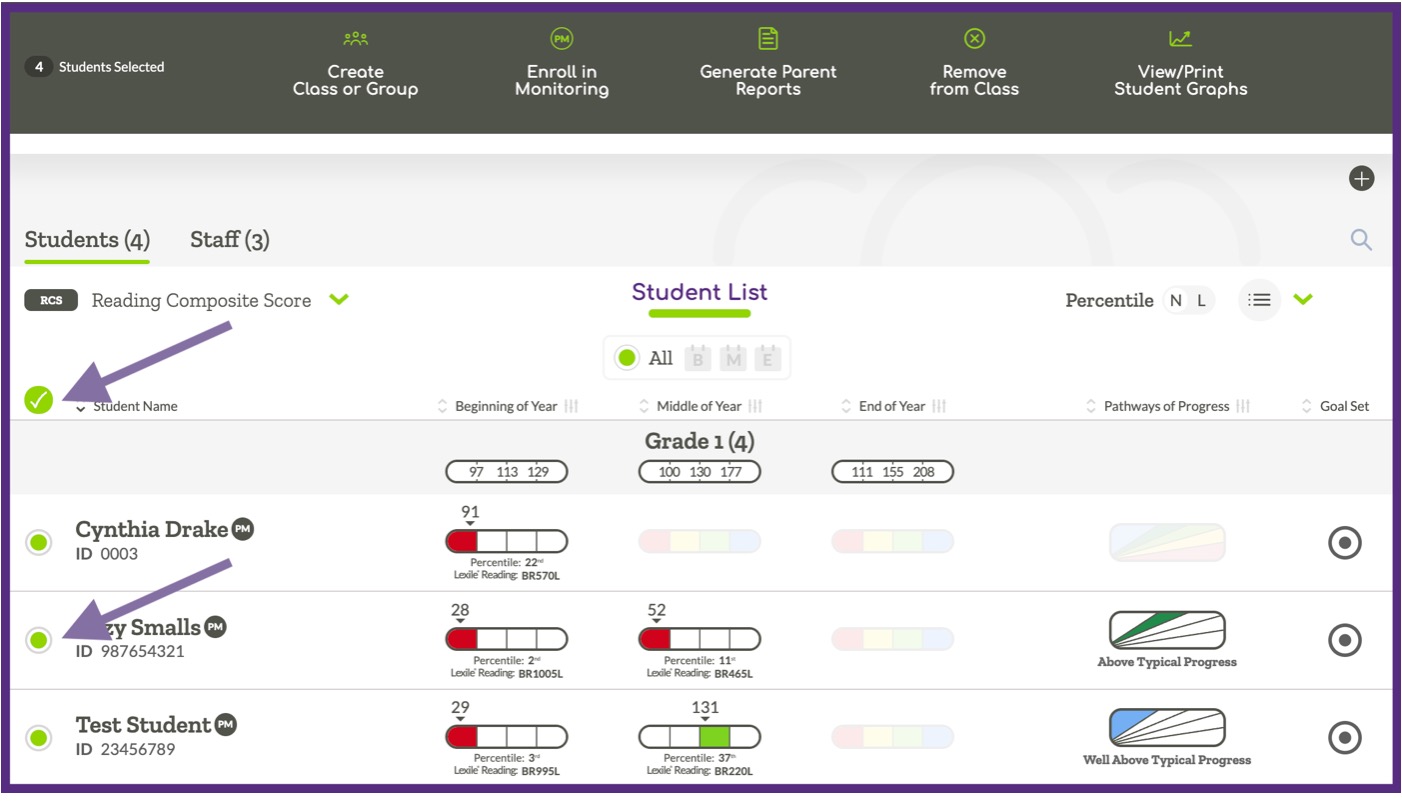
Once the desired group of students has been selected, you can perform one of the following bulk actions: create a class or group, enroll students in progress monitoring, generate parent reports, remove students (from a group, class, school or district), or view/print student graphs.
Create Class or Group

When making this selection, you will need to name your class or group.
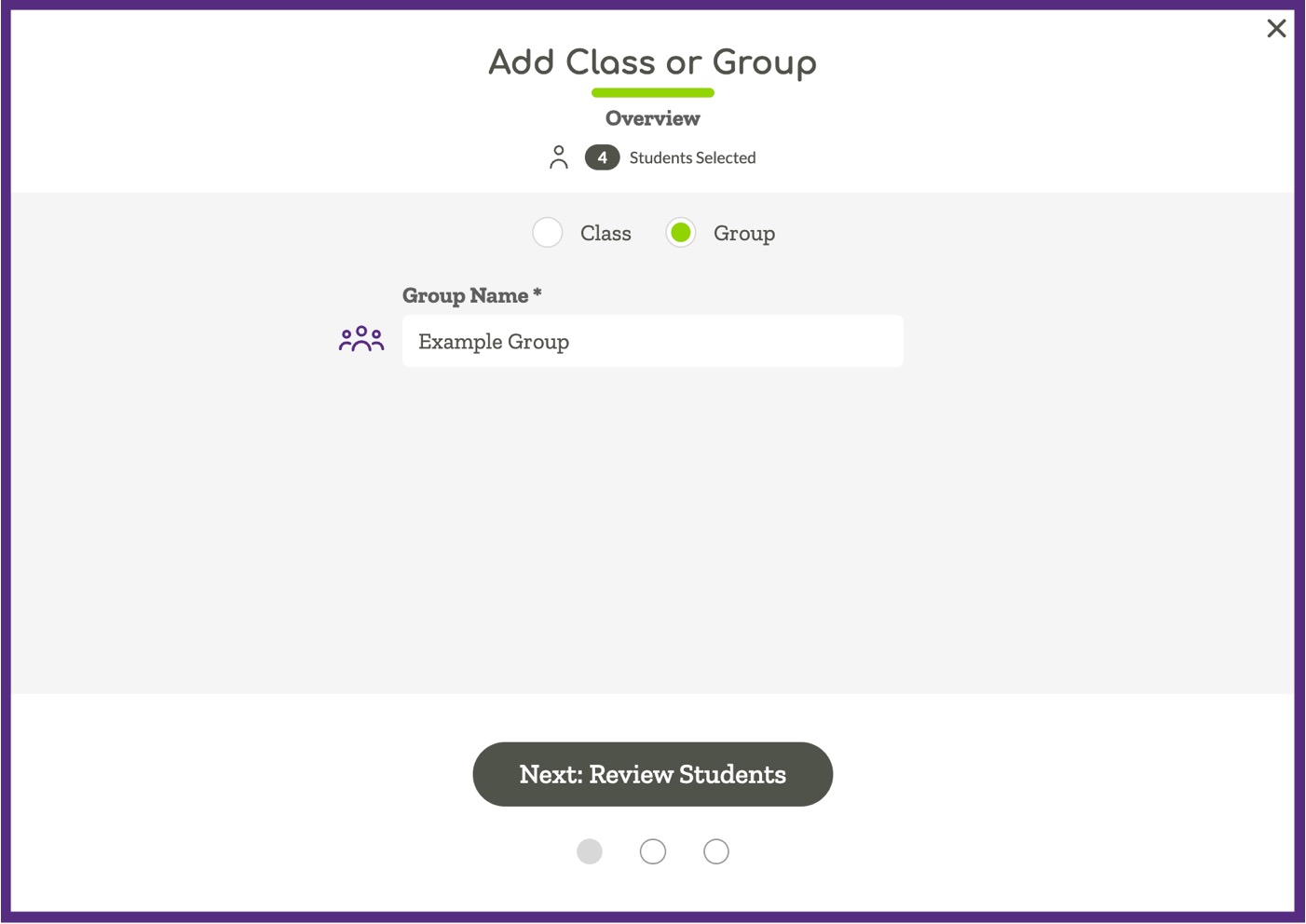
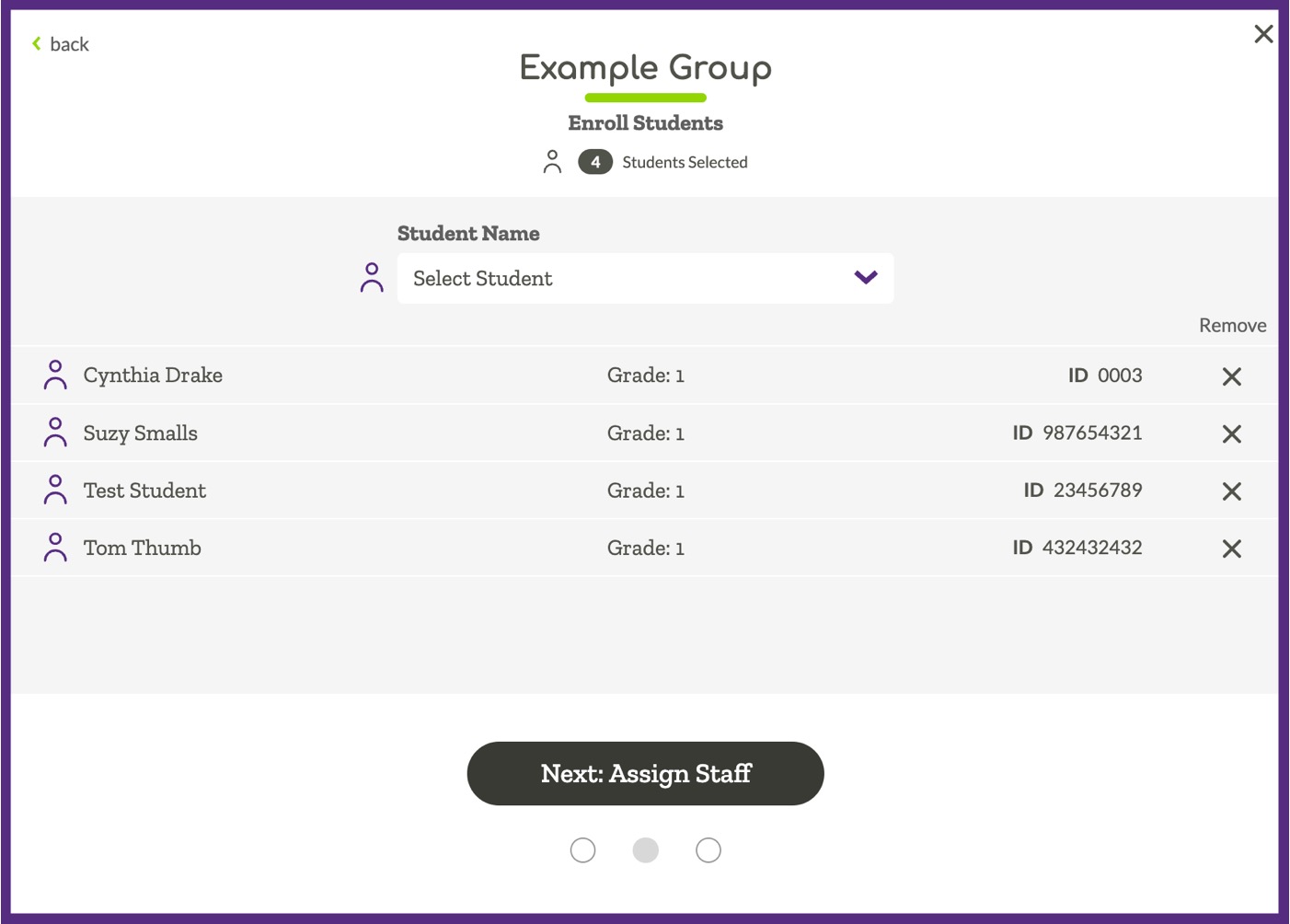
The next step allows you to review the students who will be added to the class/group and make changes if needed.
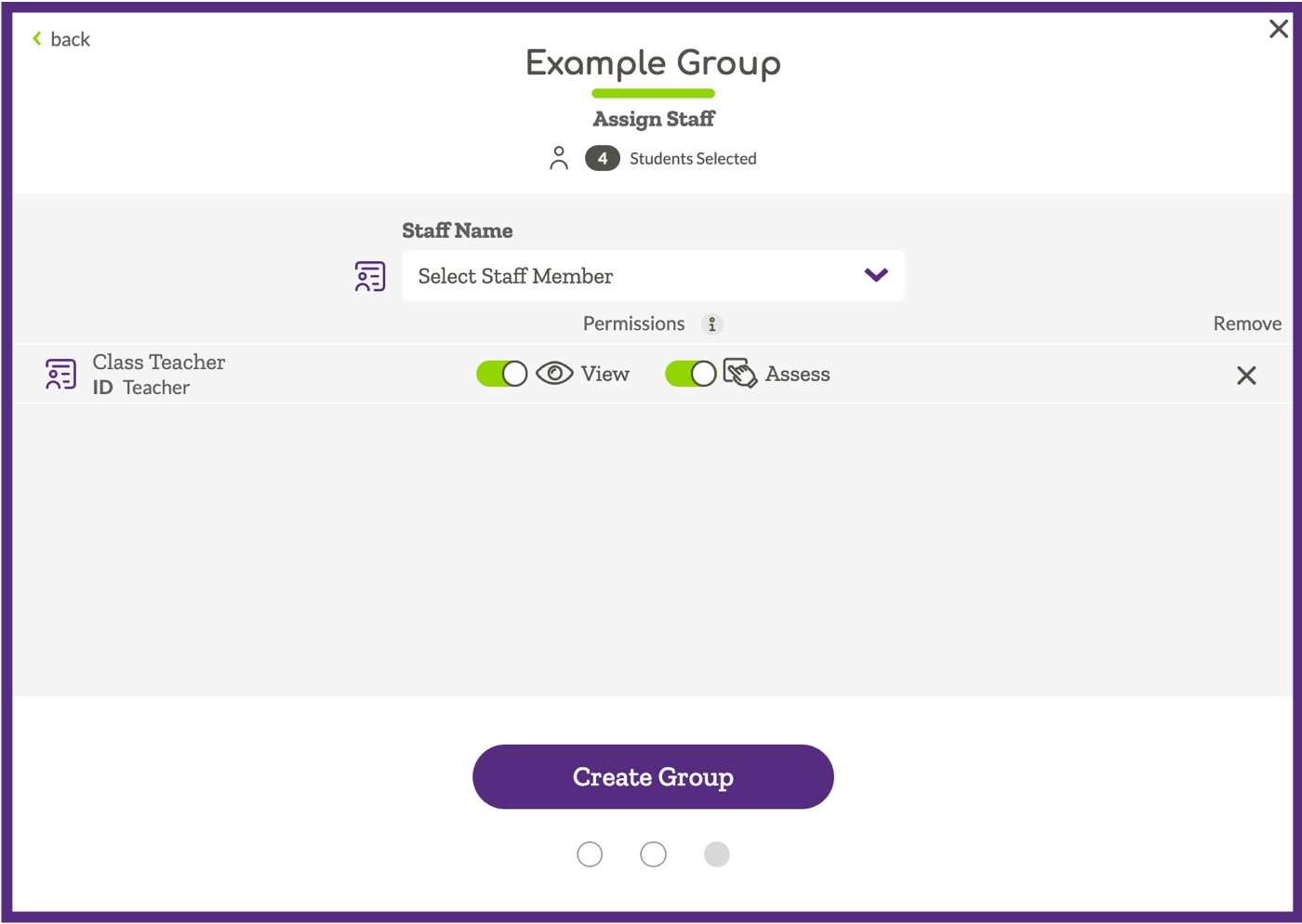
The last step provides an opportunity to set staff members up with access to the class/group. Finish setting up the group by clicking on the “Create Group” button.
Enroll in Monitoring

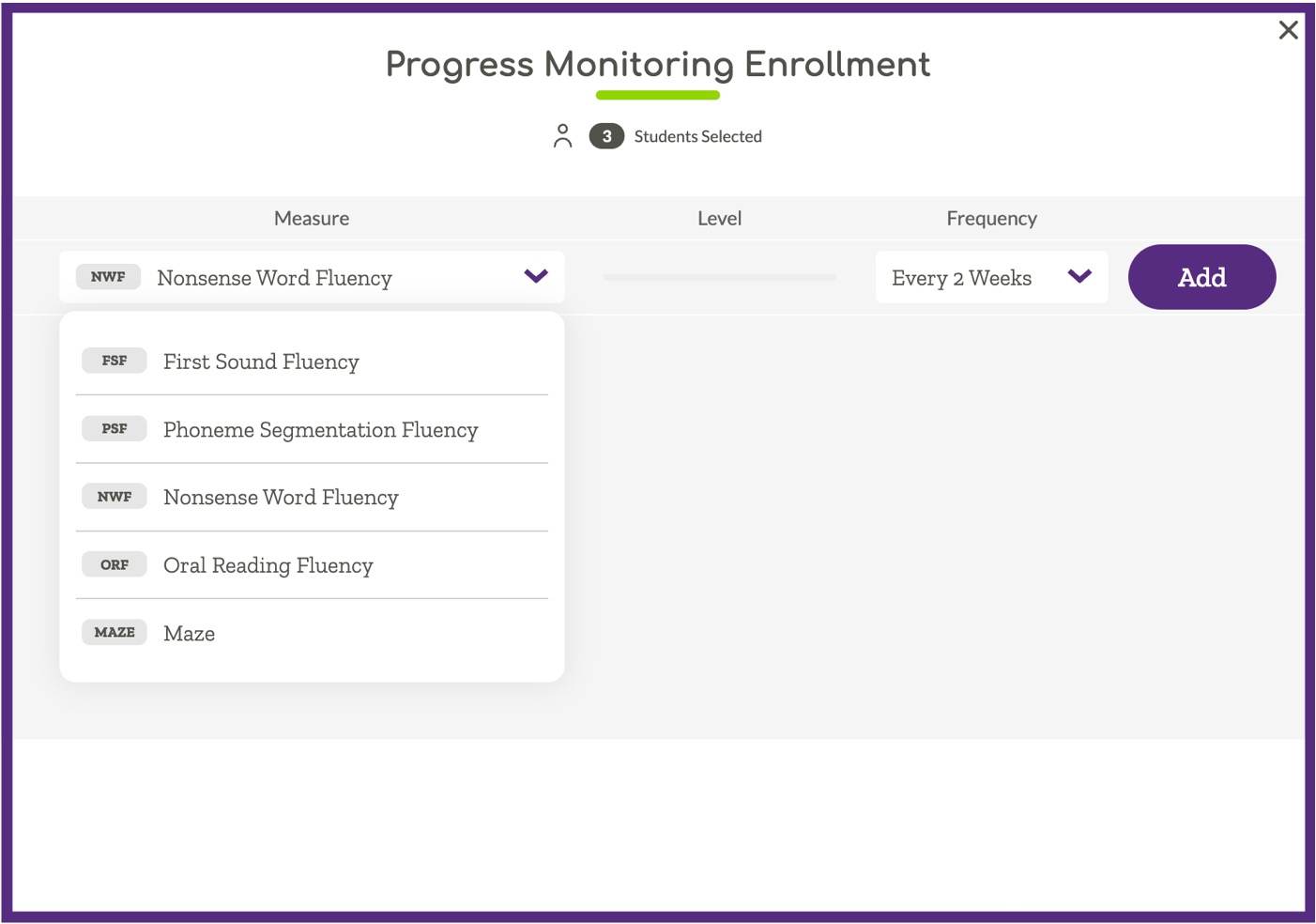
This option provides a way to enroll multiple students in progress monitoring at the same time. After selecting the option, you can choose the measure, level (if applicable), and frequency for the progress monitoring enrollment. Finish setting up progress monitoring enrollment by clicking on the purple “Add” button.
Generate Parent Reports

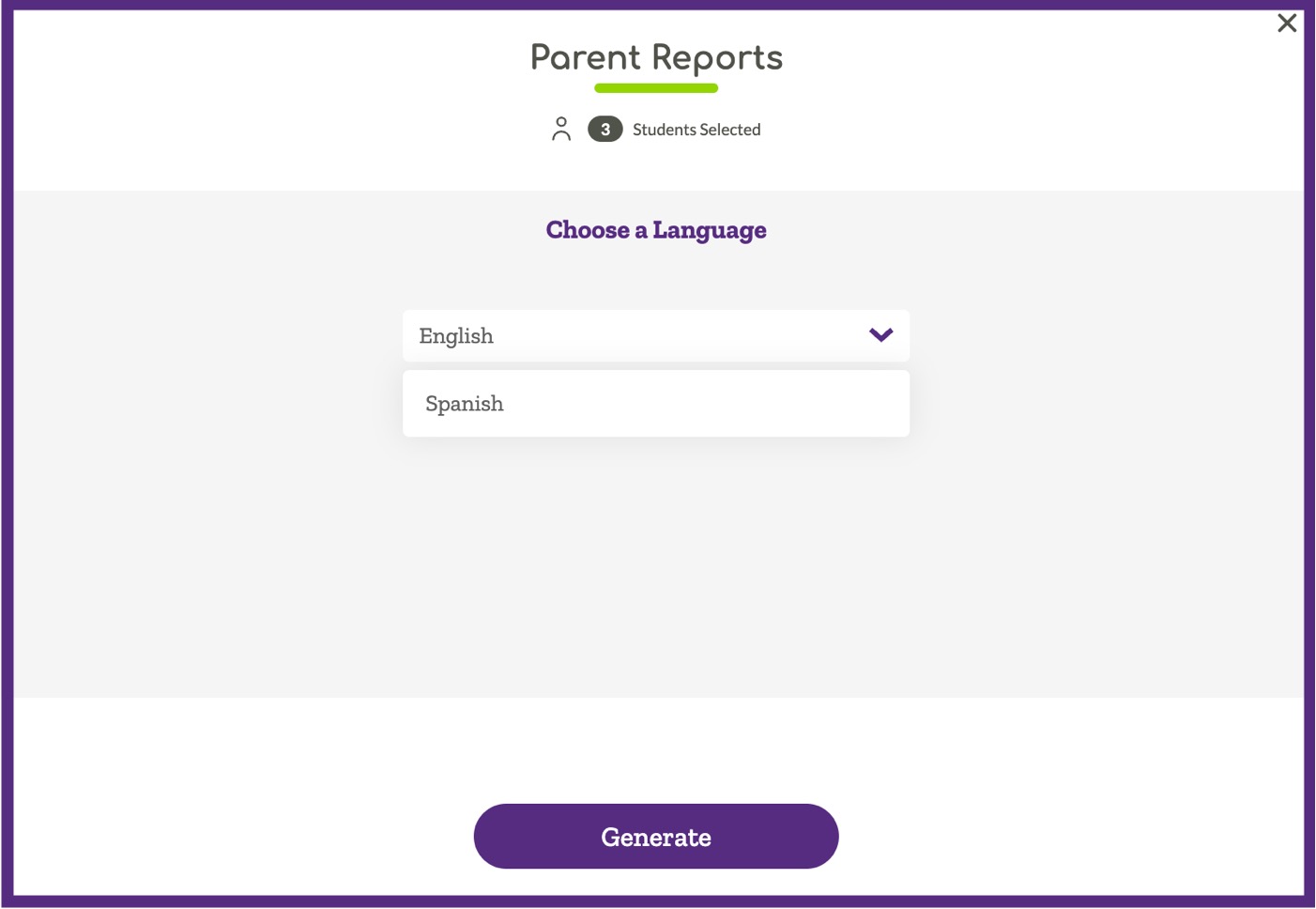
This option provides a way to print a batch of Parent Reports at one time. After selecting the option, you can choose to generate the reports in English or Spanish.
The reports will then be displayed on the screen and can be printed using the print option found in the browser file menu.
Remove from Class/School/District

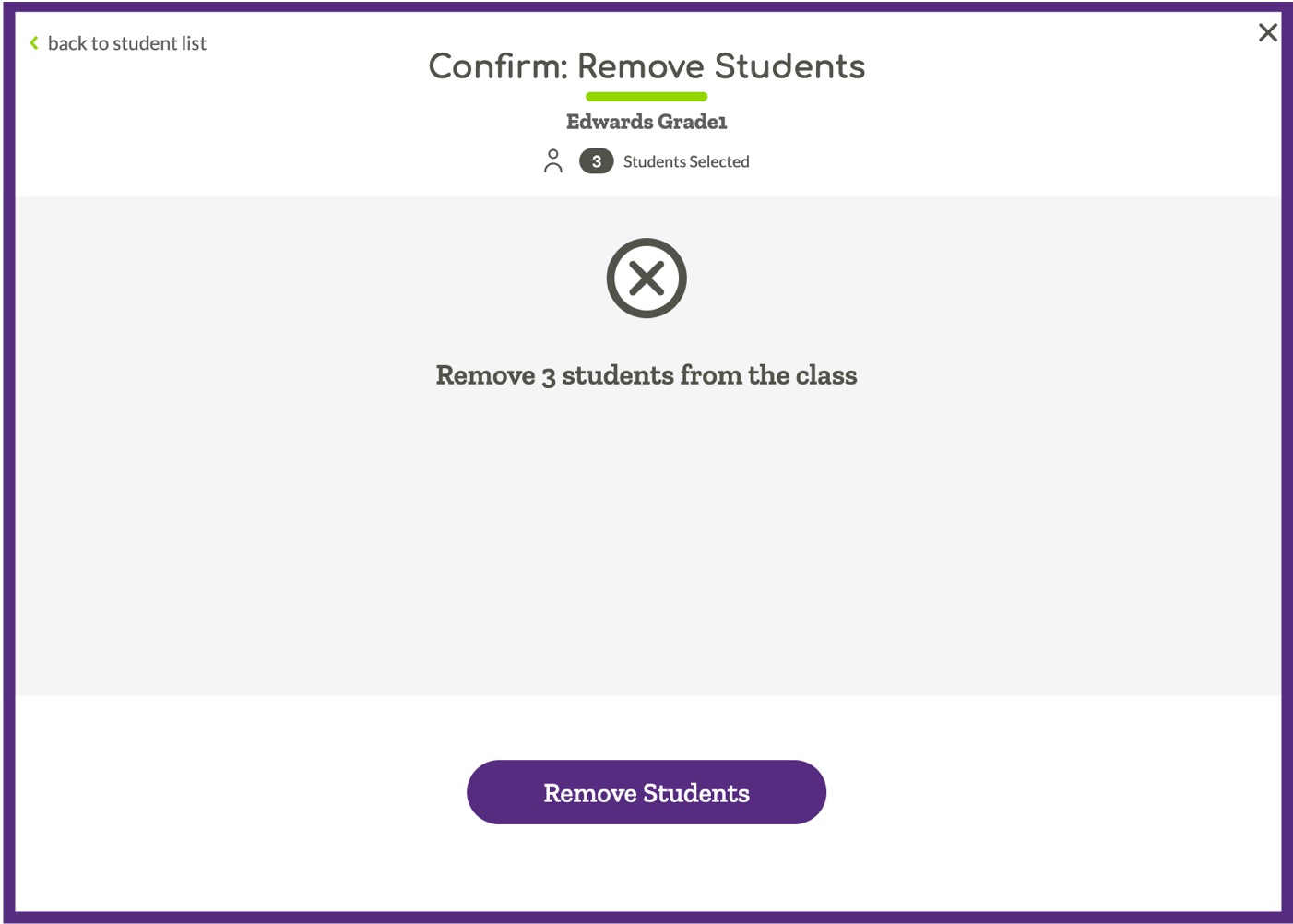
This option can be used to remove students from a group, class, school or district. After selecting the option you will have the opportunity to confirm that you would like to remove the students from the group/class/school/district before proceeding.
View/Print Student Graphs

This option can be used to view and/or print student graphs for multiple students at one time. After selecting the option the graphs will automatically be displayed on the page. The graphs can be printed for the group using the print options found in the browser menu.