

Viewing Historical Data
Historical benchmark data is available in ALO either for data collected in ALO during previous school years or imported into ALO from a different data management system.
Individual Student Level
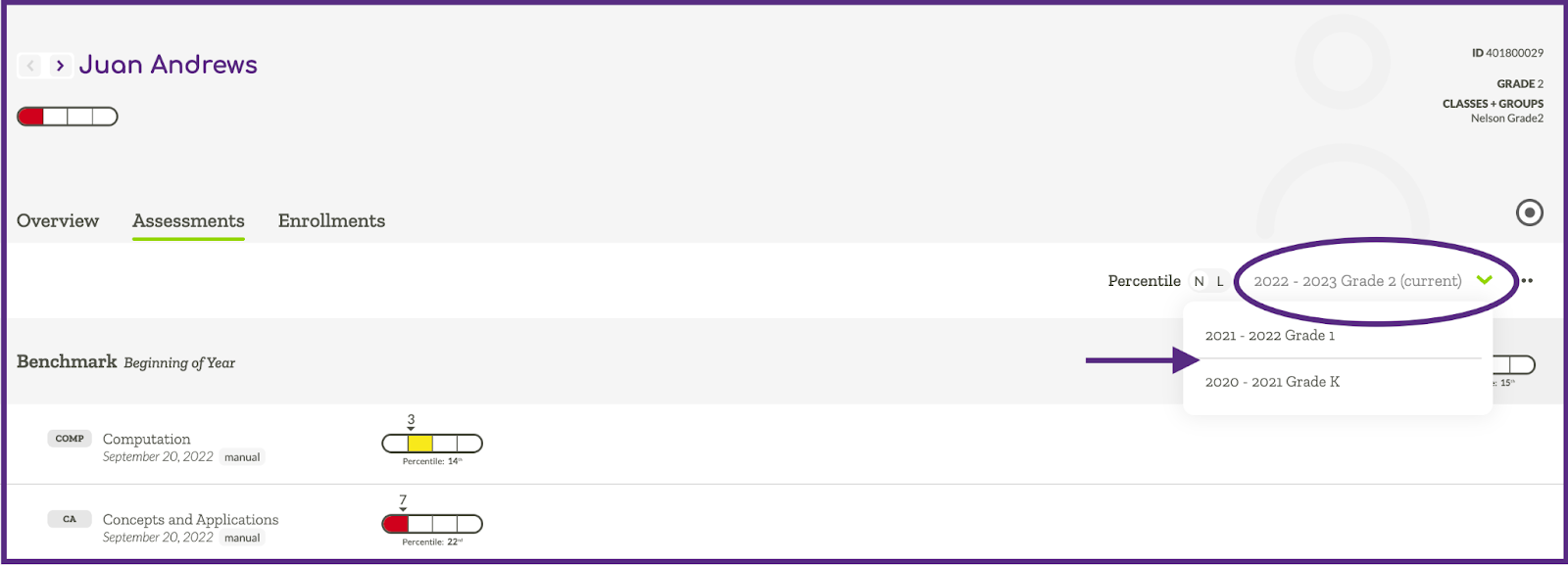
All users can view historical data at an individual student level by navigating to a Student Detail View page for a specific student and clicking on the “Assessments” tab. Clicking the green caret on the right side of the screen will display a dropdown menu that will allow you to switch between the current year and previous years.
Aggregate Historical Data (District/School Admins)
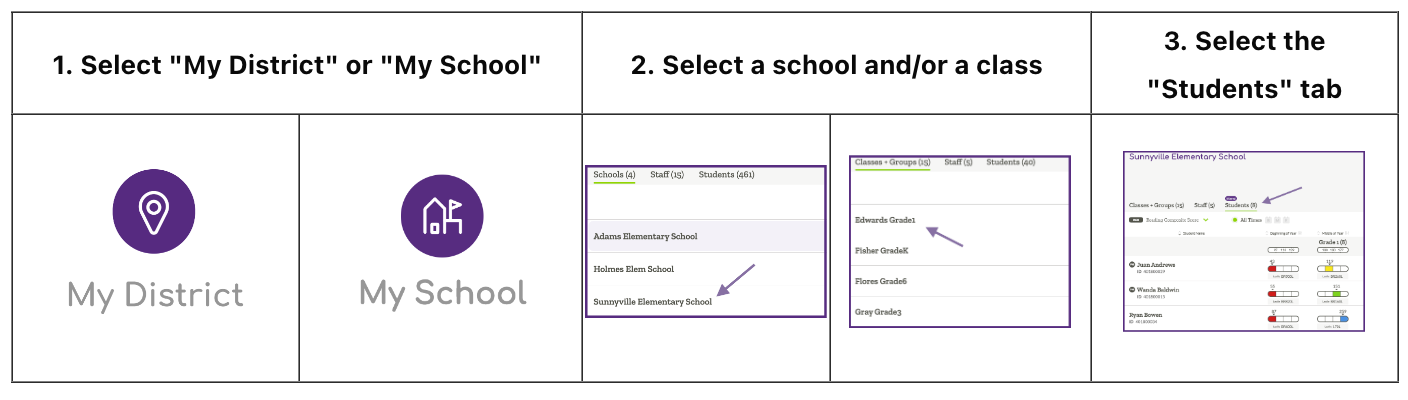
District or school admin users can view aggregate historical data by first navigating to a Student List view at the school or district level by following the directions below.
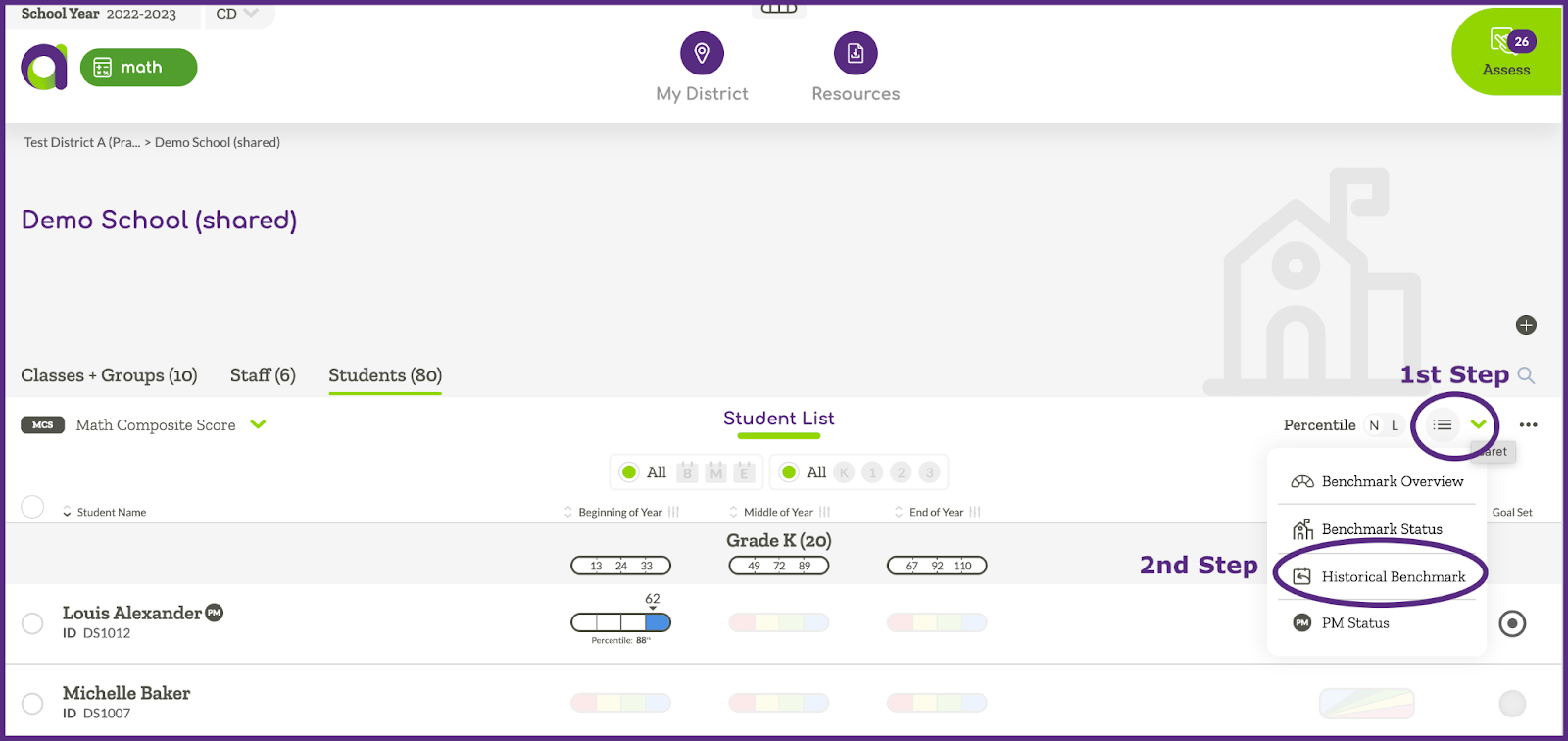
Click on the green carat in the right-hand corner and select “Historical Benchmark.”
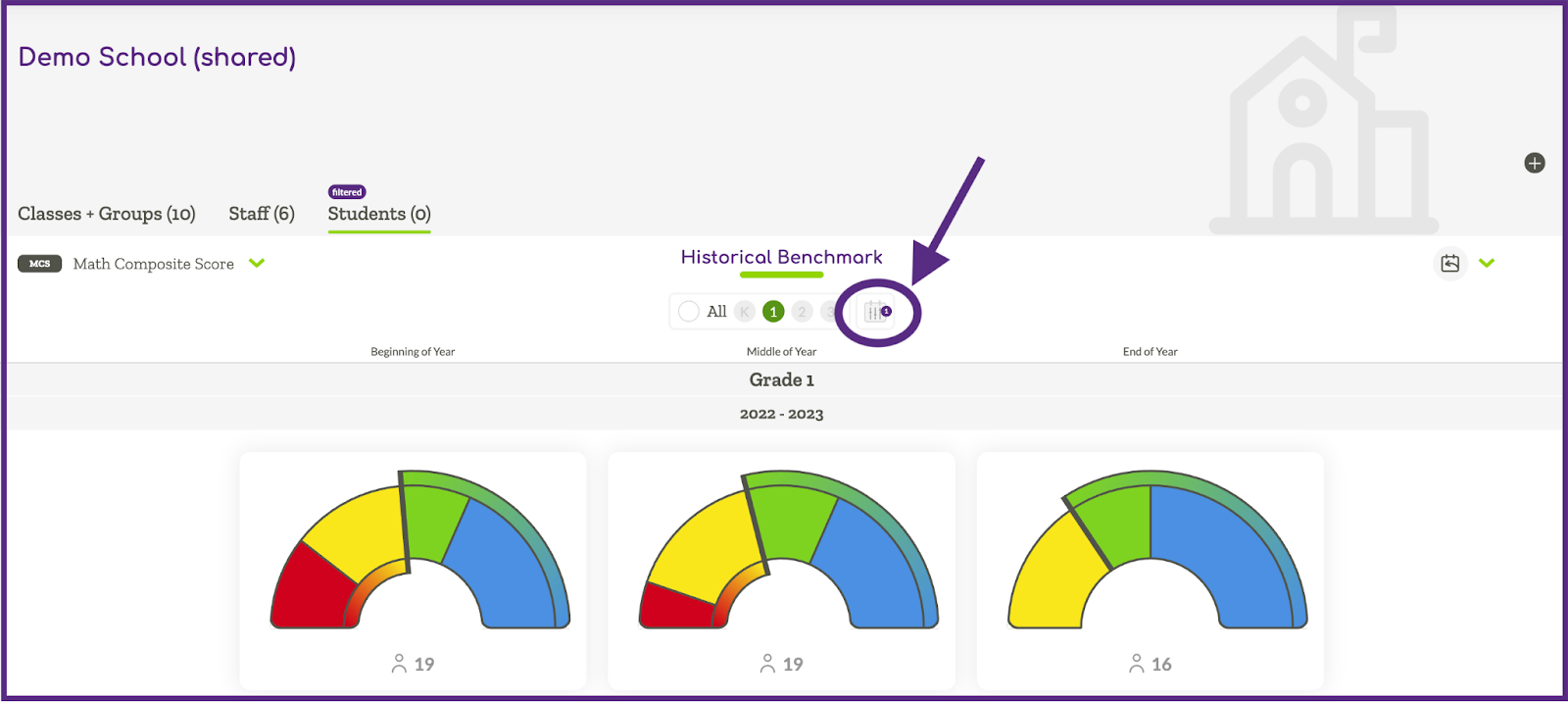
The system will display the most recent 5 years of data. Clicking the calendar icon will allow you to customize the years for which data are displayed.
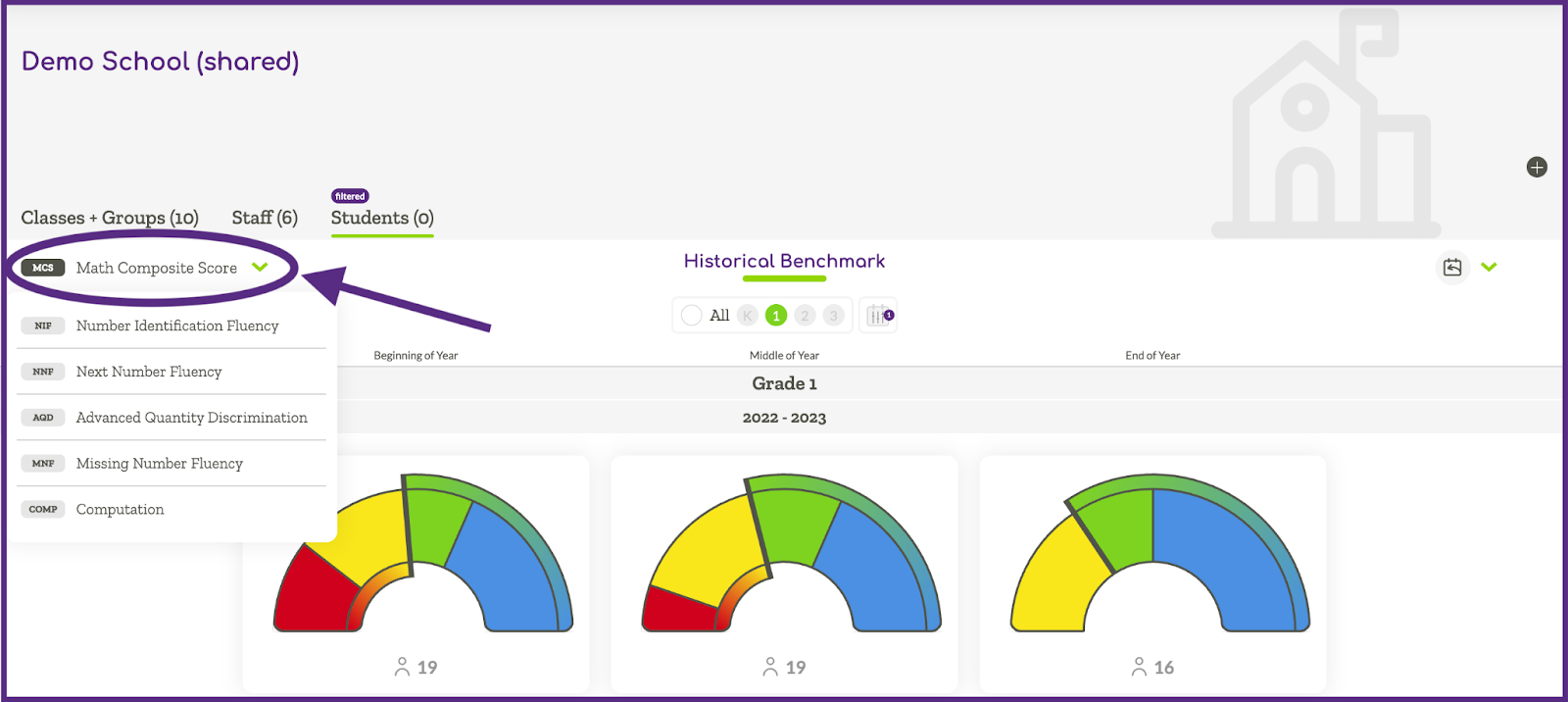
Clicking the green caret in the top left corner will display a dropdown menu that allows you to view individual assessment measures.
Export a CSV File (District/School Admins)
District or school admin users can export benchmark and progress monitoring scores for previous years by navigating to a Student List view at the school or district level by following the directions below.
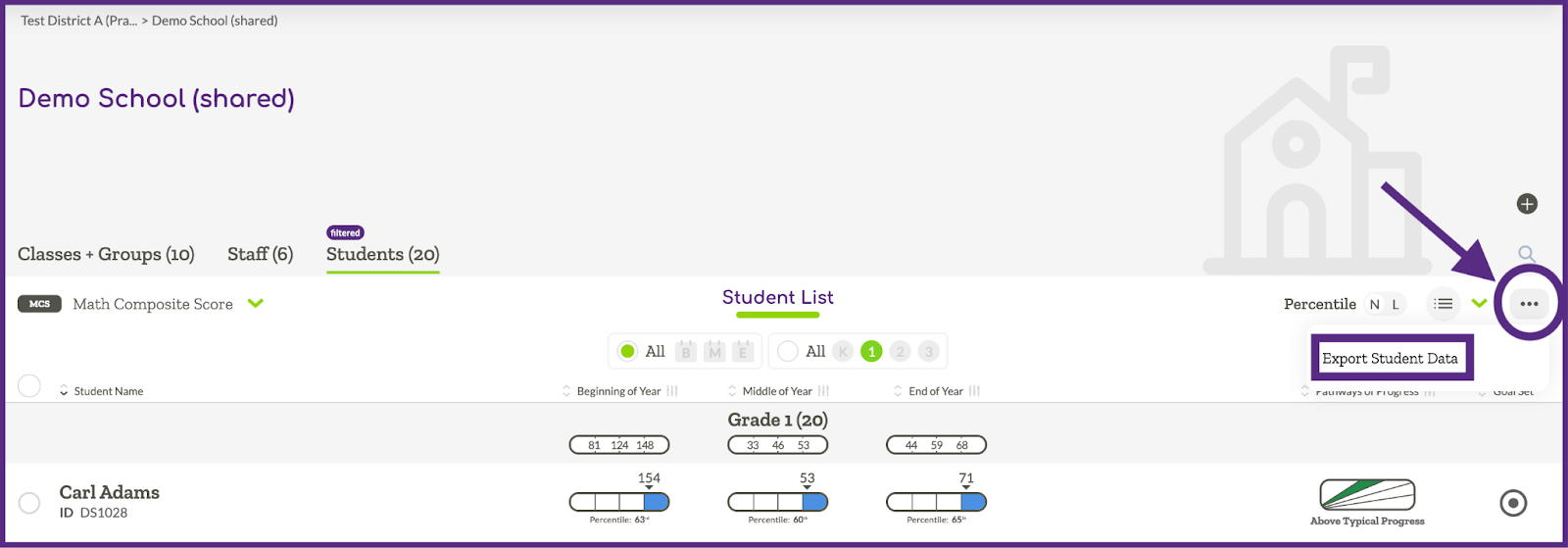
Click on the three dot menu on the right-hand side. Then select Export Student Data.
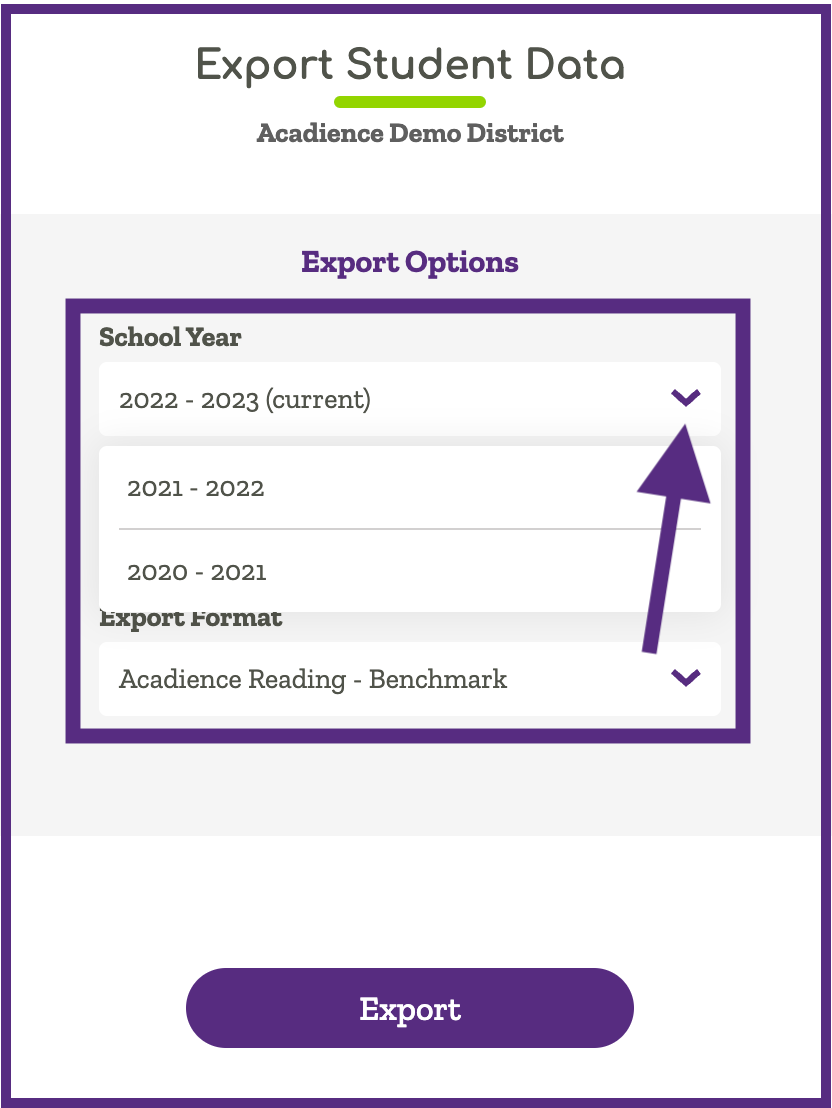
Under the School Year header click the purple caret to select the school year you would like to export.
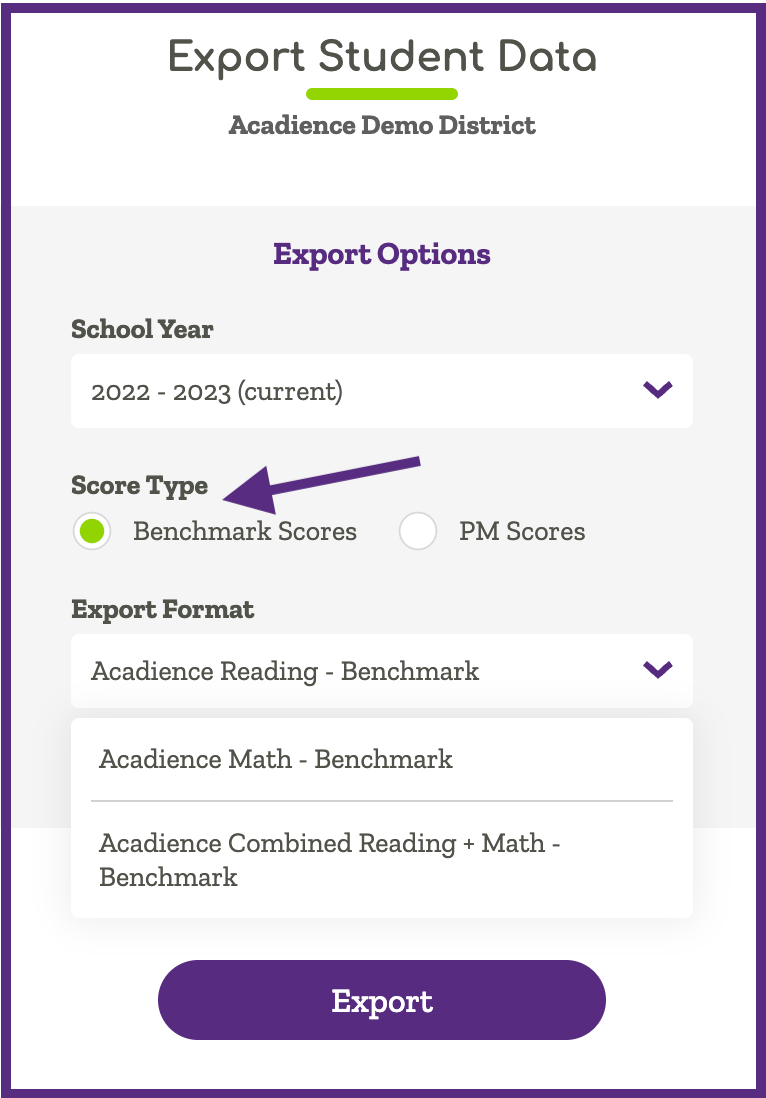
Choose ‘Benchmark’ as Score Type. Choose the export format (Reading, Math or Combined). Click Export.
Your data will automatically download as a CSV file and will include all of your student and score information.