

Computation - Digital Scoring
Digital scoring for Computation is available from the Student List view in ALO. The digital scoring option can be accessed by following the steps below.
Make sure the Math assessment is selected using the Assessment Button. Note: This step will only apply if you are using ALO for multiple assessments.

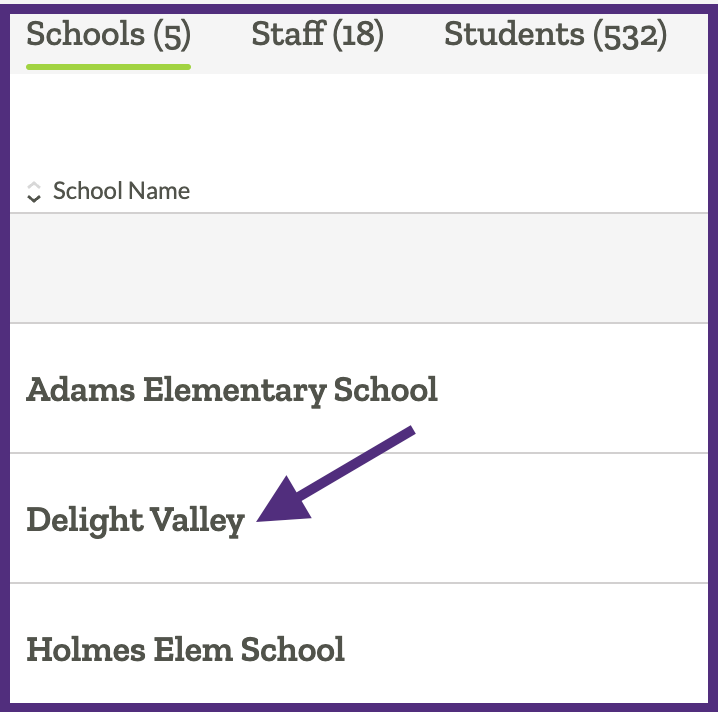
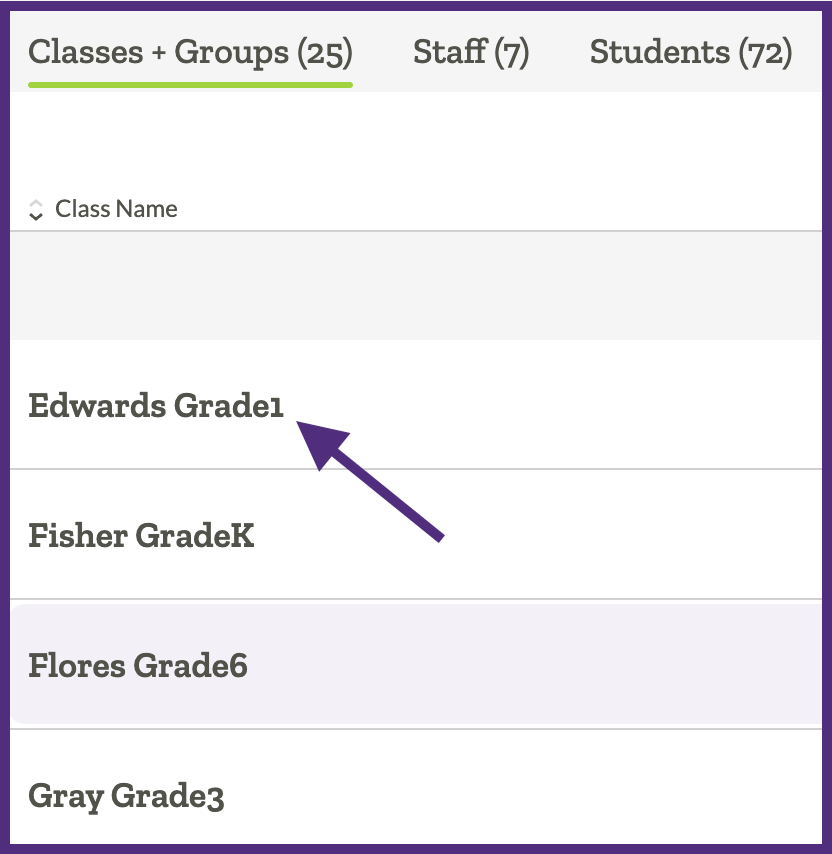
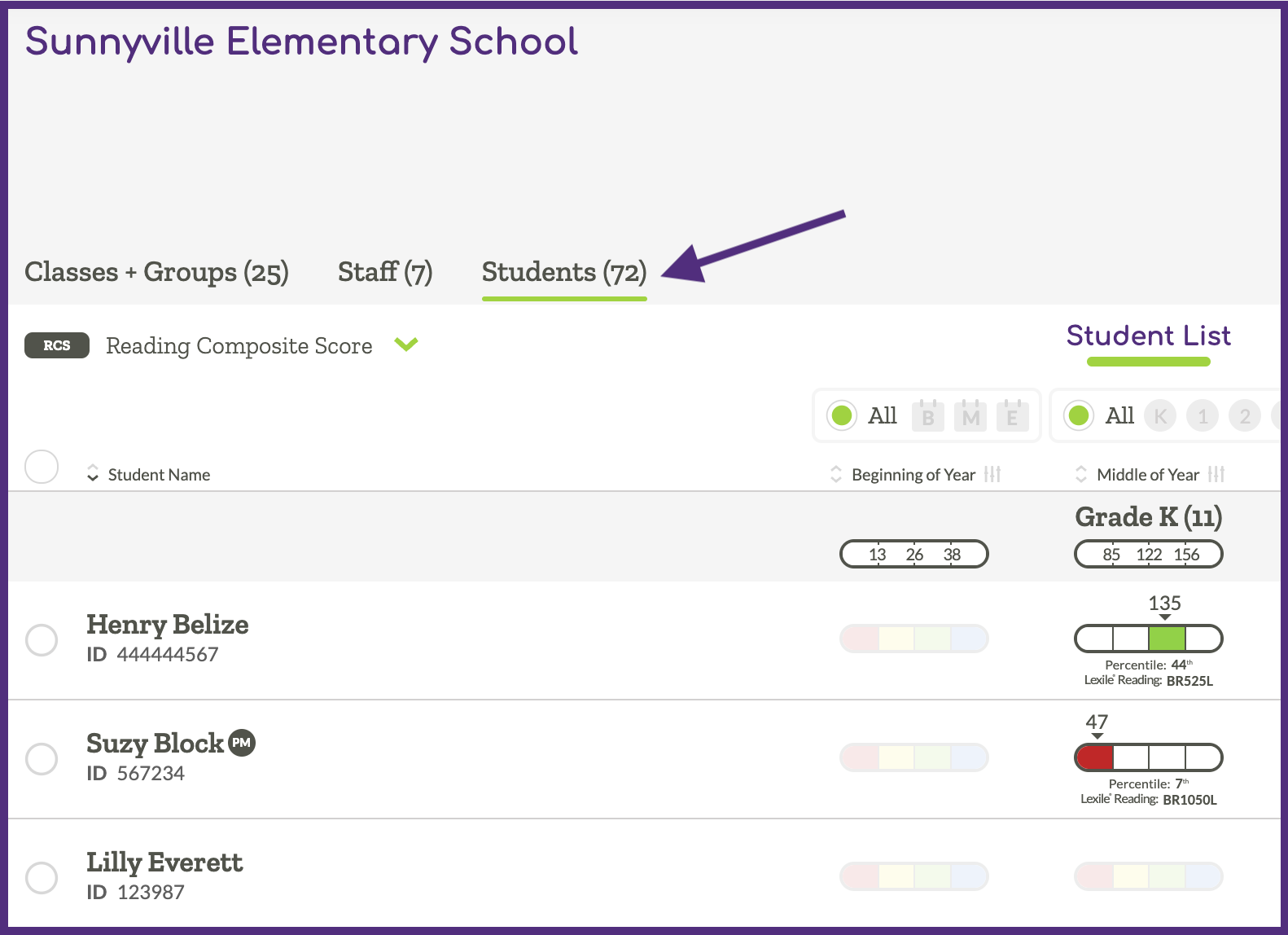
Navigate to a Student List view at the School or District level by following the steps below.
| 1. Select “My District” or “My School” | 2. Select a school and/or a class | 3. Select the “Students” tab | ||
 |
 |
 |
 |
 |
Change the view to display the time of year you would like to enter scores for (beginning “B”, middle “M”, or end of year “E”). 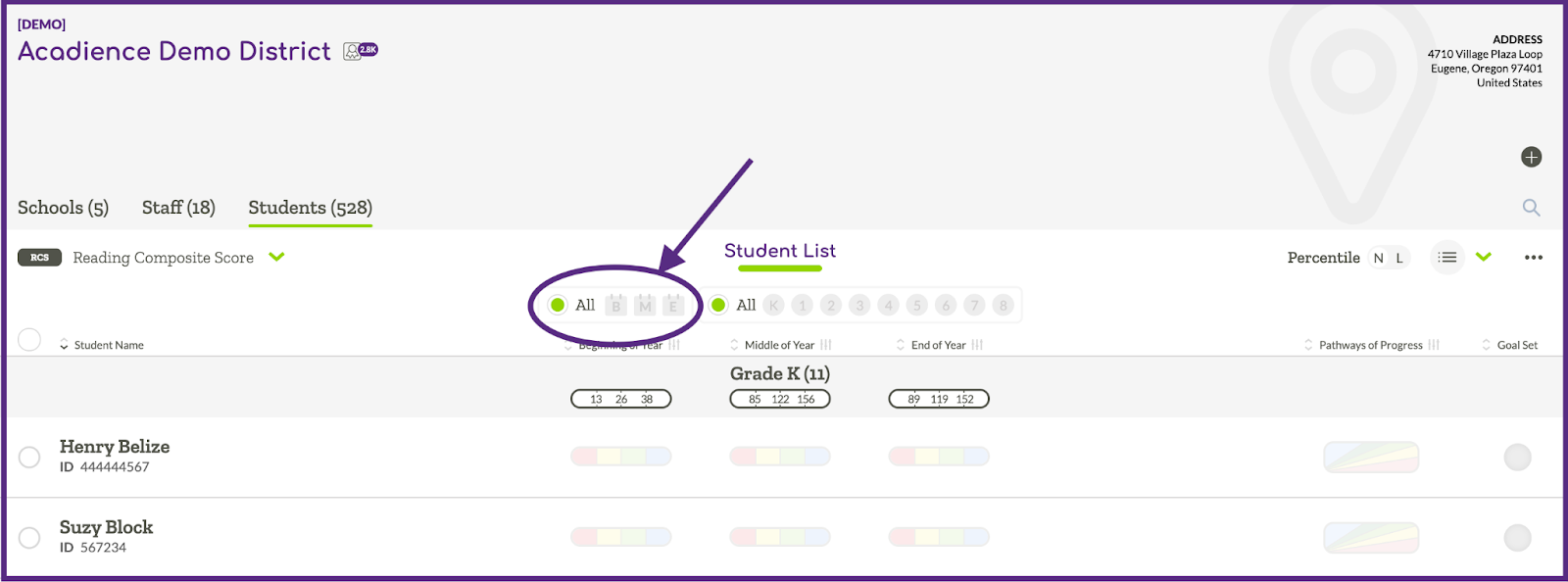
Select the manual score entry icon (on the right side of the screen) for the student you would like to enter scores for. Note: in order for the manual score entry icon to display touchscreen devices must be in a landscape orientation. 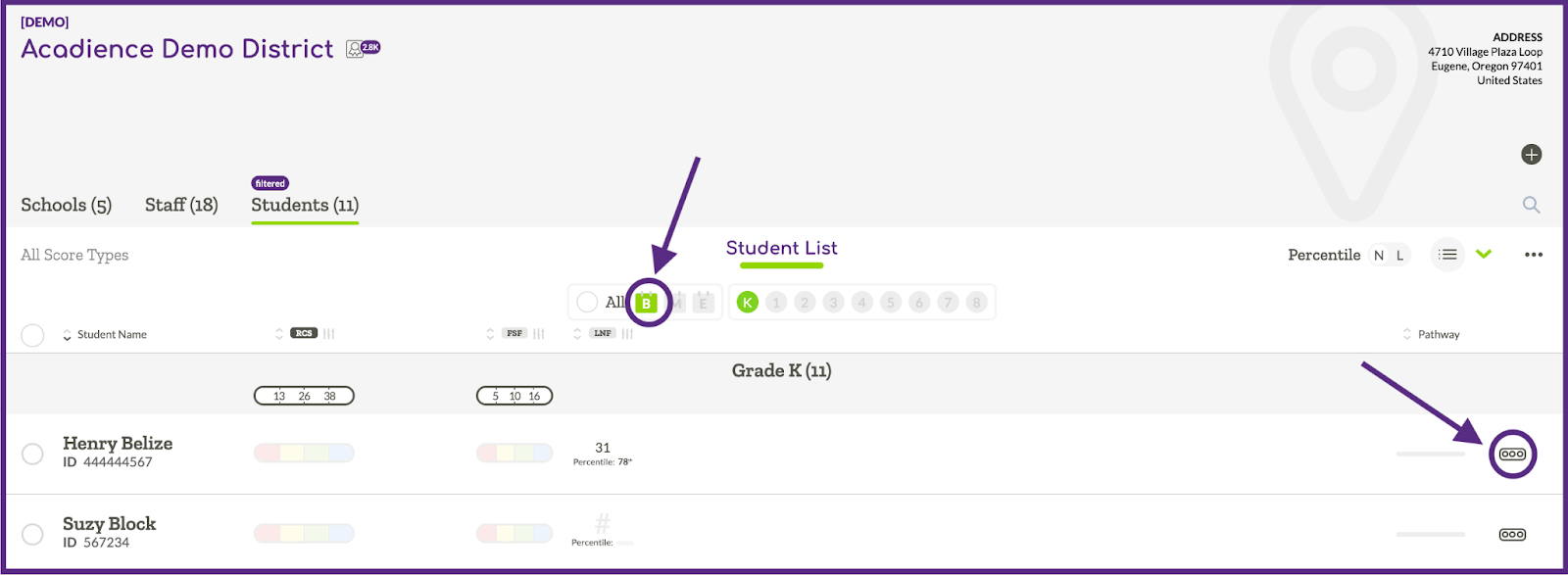
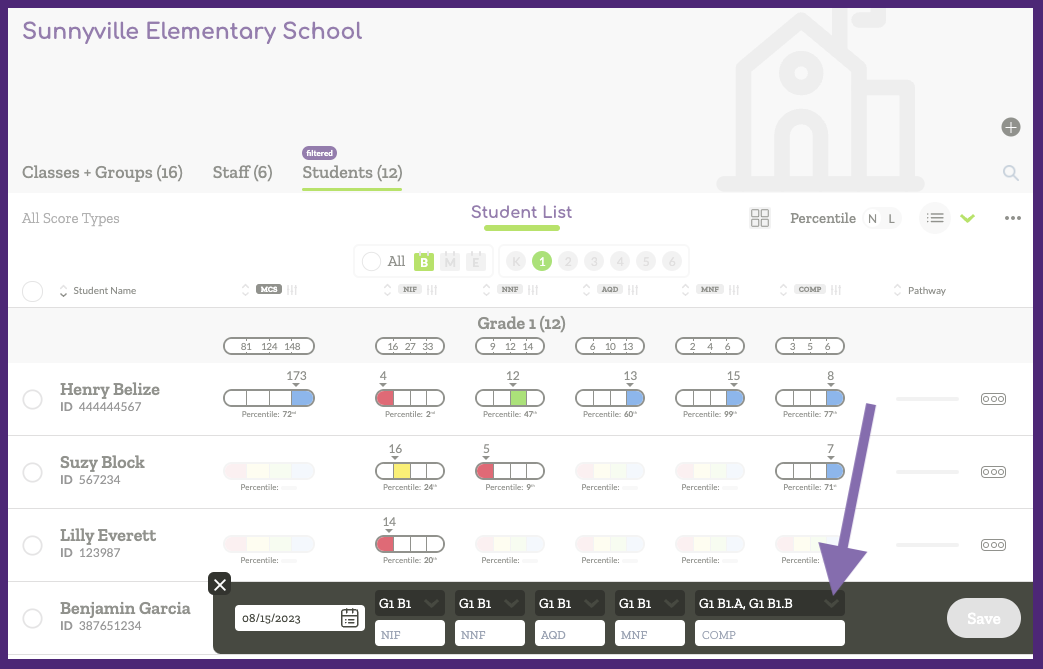
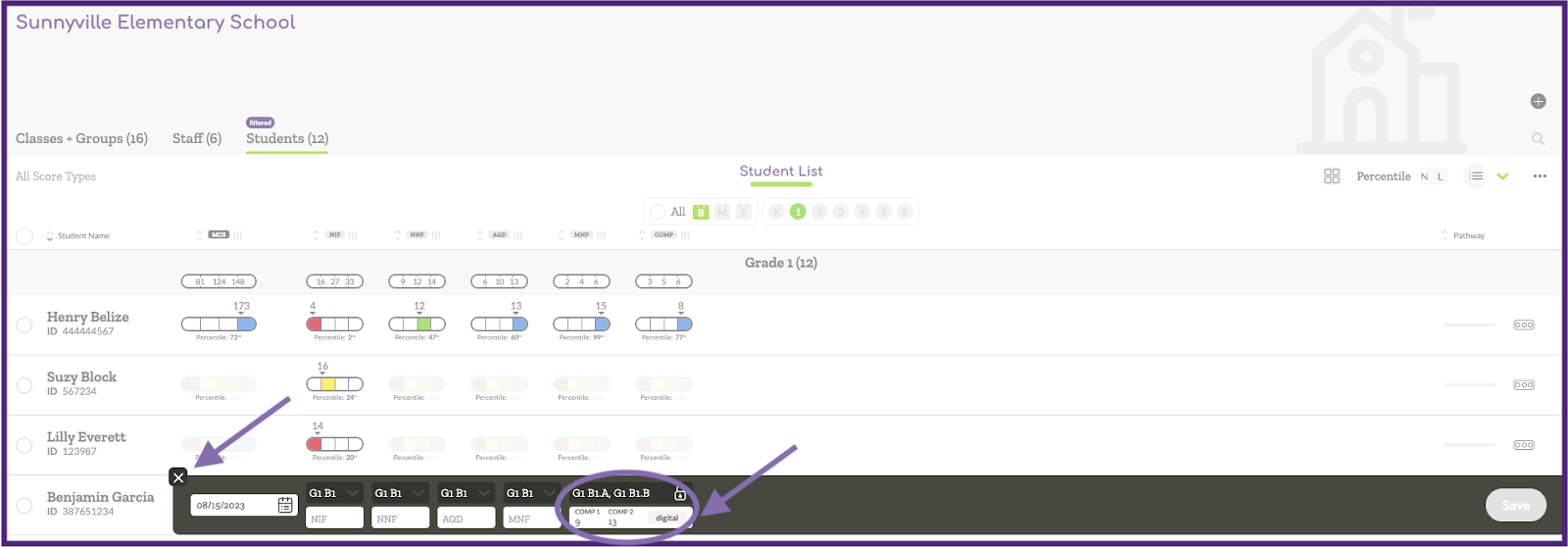
After you select the manual score entry option, the data entry fields will display on the screen. Select the assessment date. By default, the benchmark forms are selected. If one or both of the benchmark forms were invalidated and a Progress Monitoring form was used to reassess, ensure that the correct form is selected. The correct form must be selected to ensure the forms displayed correspond to student assessment materials. To change the form, above the box that says ‘COMP’ click on the gray down caret.
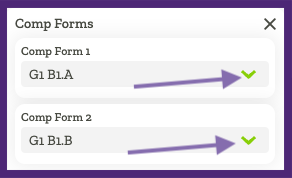
In the pop up window, click the green down caret to select the corresponding forms that were used for administration. Once the correct forms are selected click the black X in the right corner.
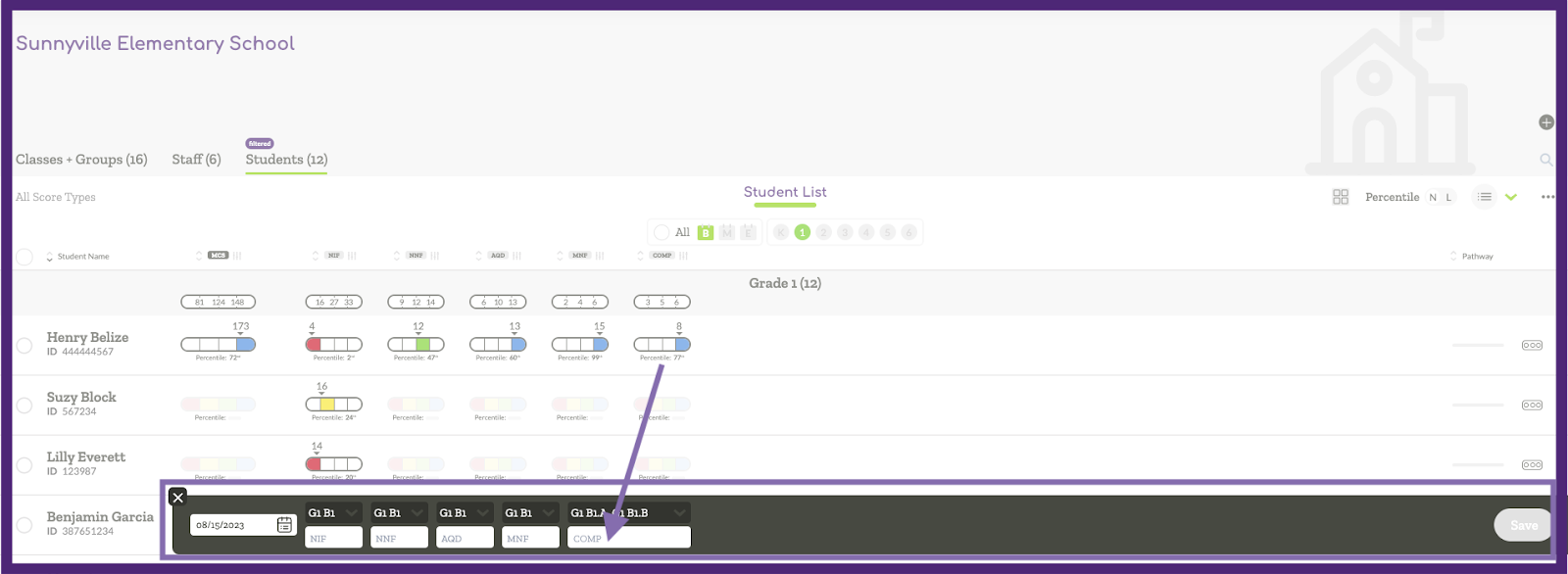
The forms used for administration will be displayed above the data entry box.

Next, Click in the COMP box to enter student answers.
In the pop-up window, click “Enter Student Answers.”
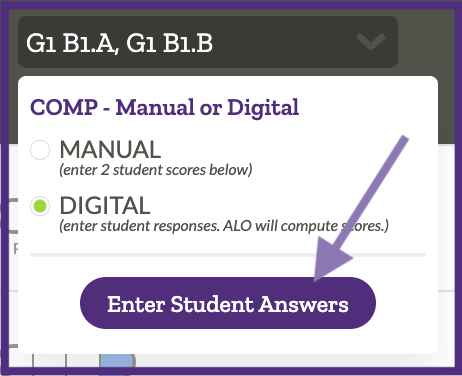
A new window will open for assessors to enter student responses.
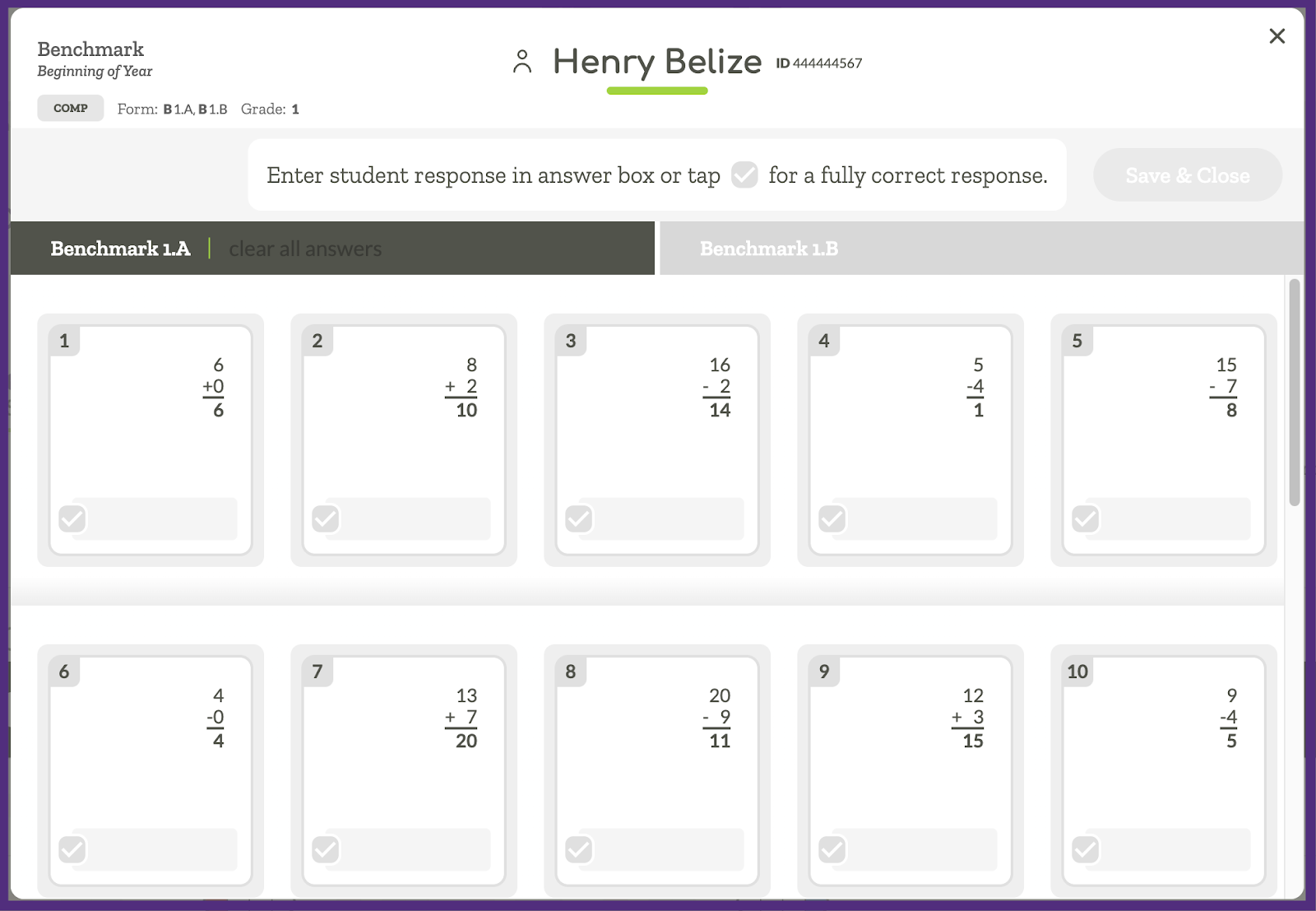
For each answer, enter the student response in the box under the corresponding item. The scoring marks above each item will correspond to student responses.
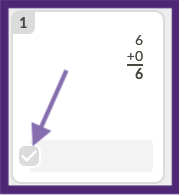
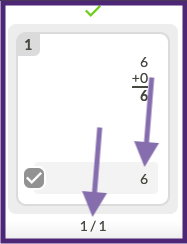
 Full credit
 Partial credit
 No credit
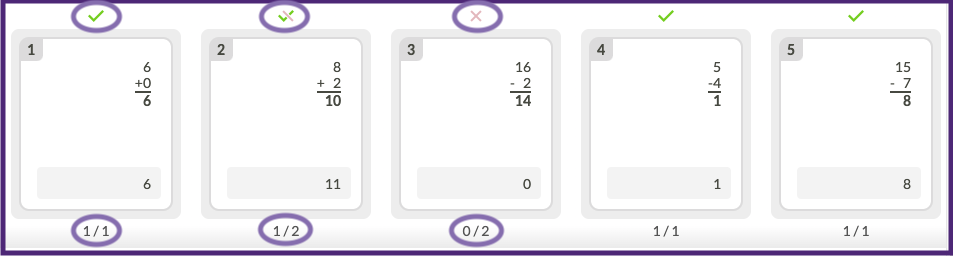
The total number of points earned for each item are displayed below the entered response.
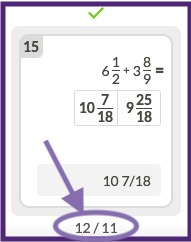
Note: Fractions that have been fully reduced allow students to earn additional credit. This is reflected in the total points below the item.
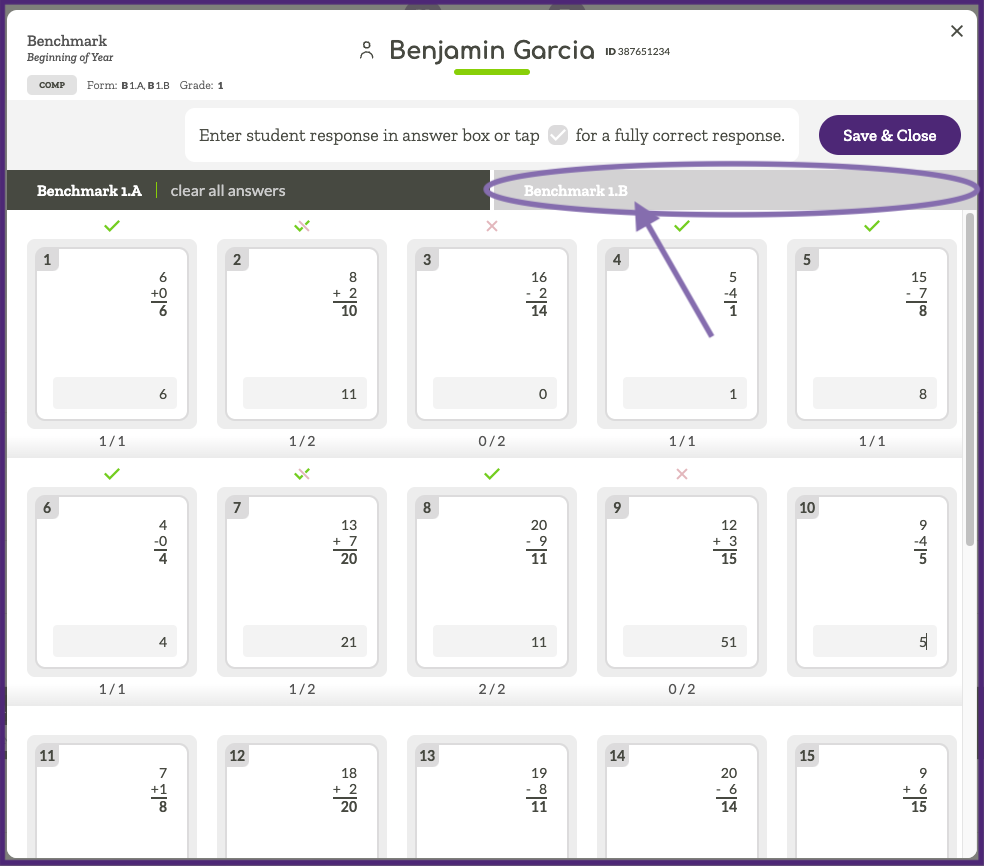
The tab button allows you to quickly move to the next item. Once the student responses for the first form have been entered, click on the light gray bar for the second form (benchmark form B, or alternate PM form in the case of an invalidation).
Enter the student responses for the second form. When all responses are entered click “Save & Close”
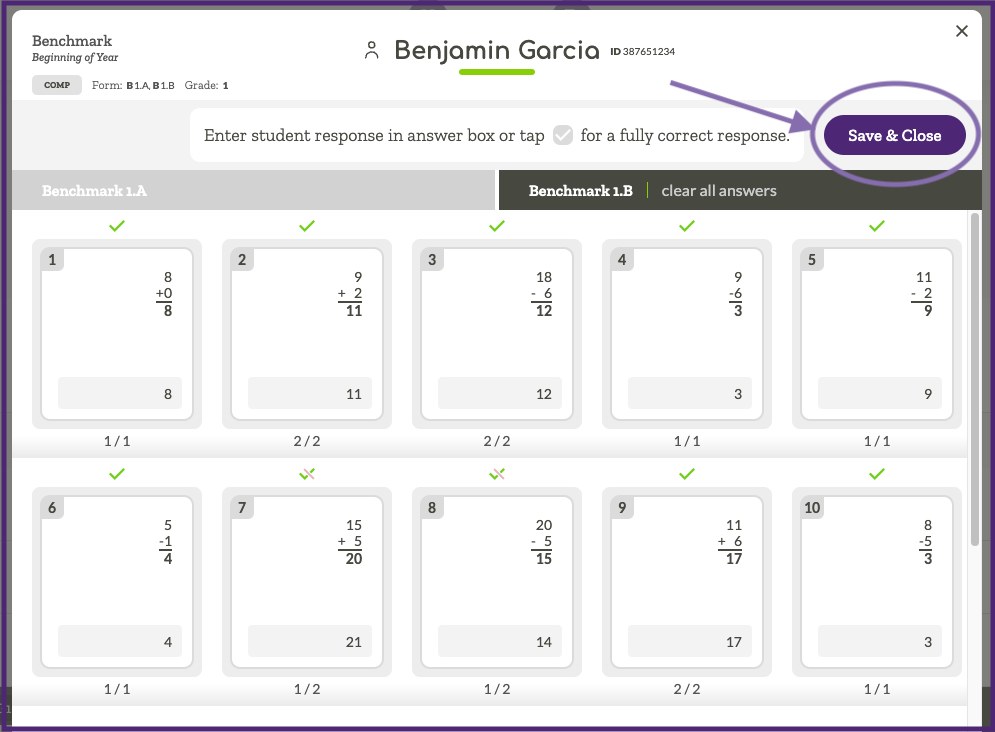
Student scores will be displayed. Clicking on the x will take you back to the student list view.
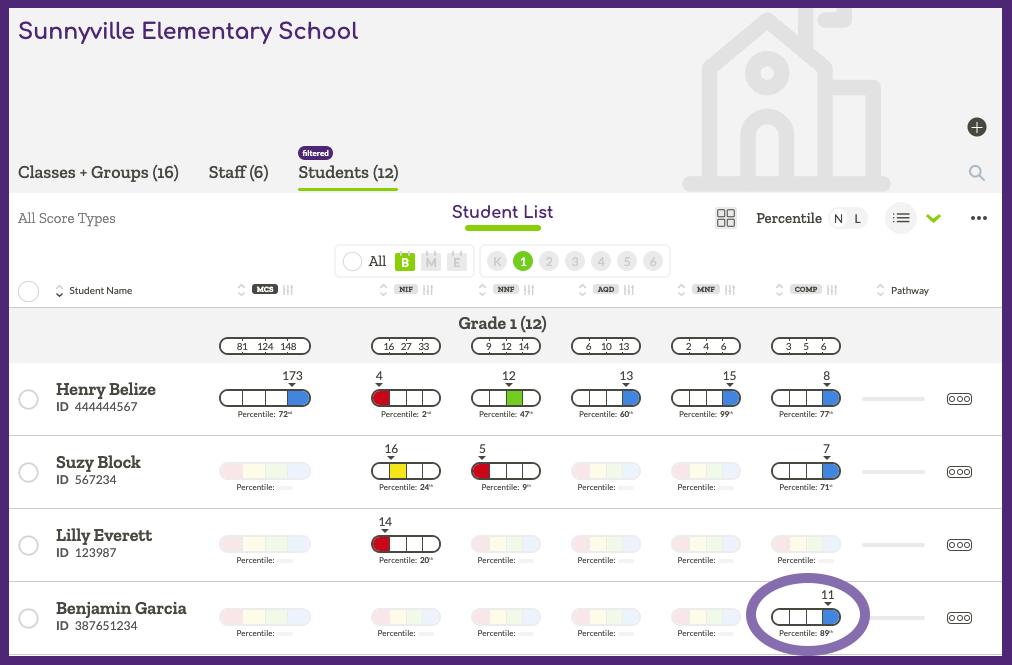
On the student list view the Computation score and corresponding benchmark status are displayed.
Repeat these steps to enter answers for remaining students.