
Manual Benchmark Score Entry
Manual Benchmark Score Entry
Manual benchmark score entry for Acadience Reading K–6 and Acadience Math is available from the Student List view in Acadience Learning Online (ALO). You can access the manual data entry option by following the steps below.
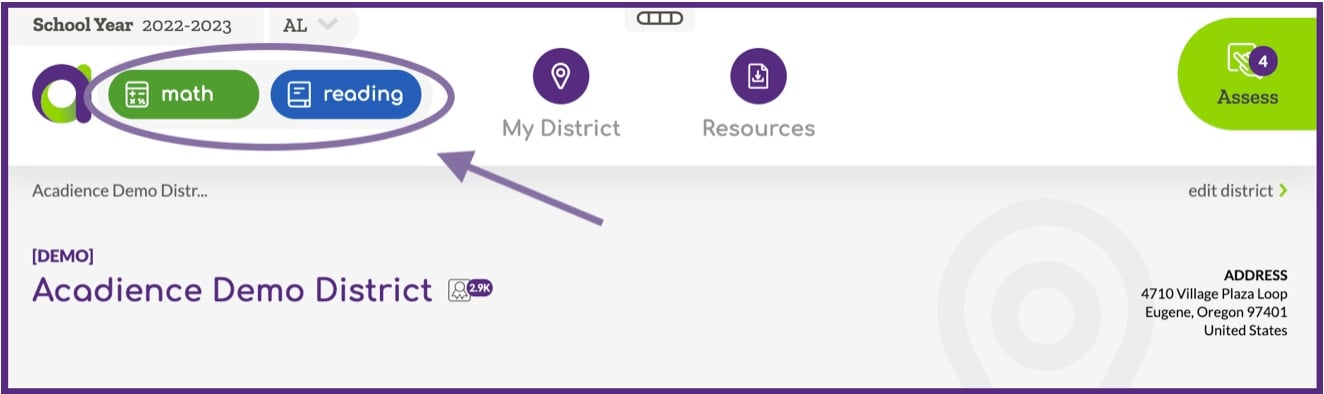
- Make sure the correct assessment is selected using the Assessment Button. Note: This step will only apply if you are using ALO for both Reading K–6 and Math. Skip to Step 2 if you are using only Reading K–6 or Math.
- Navigate to a Student List at the District, School or Class level:
- To view a Student List at the Class level, select My District> select your district name> select your school name> select a class name.
- To view a Student List at the District or School level, navigate to the District or School page and select the “Students” tab.
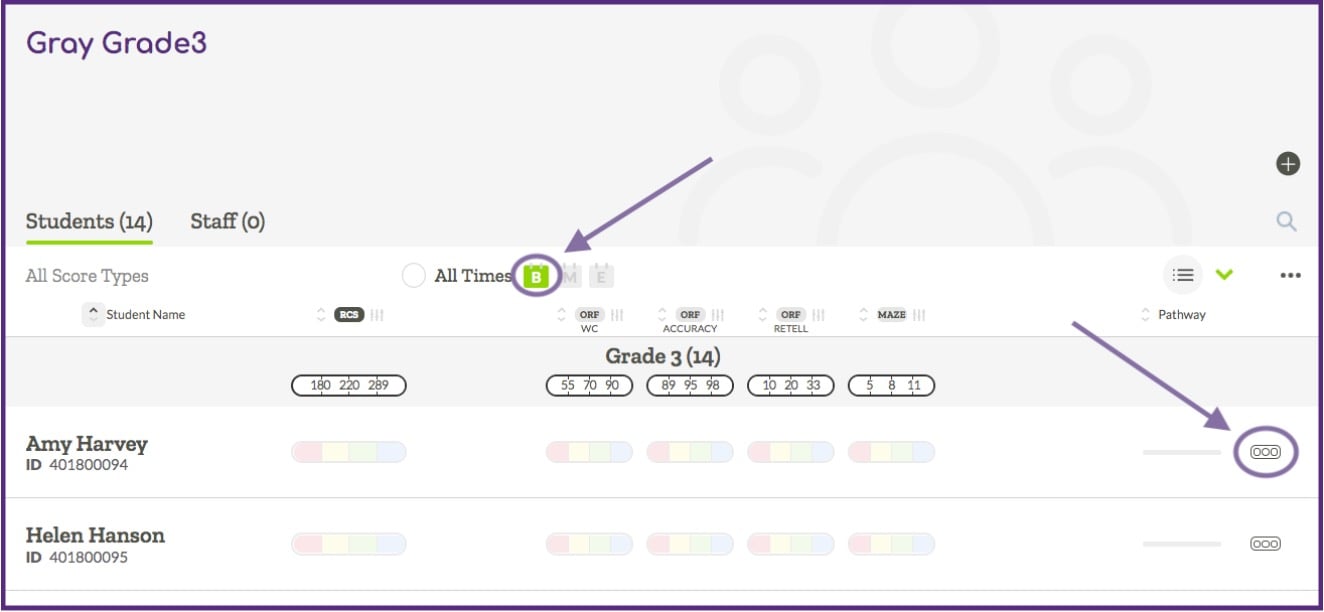
- Change the view to display the time of year you would like to enter scores for (beginning “B”, middle “M”, or end of year “E”).
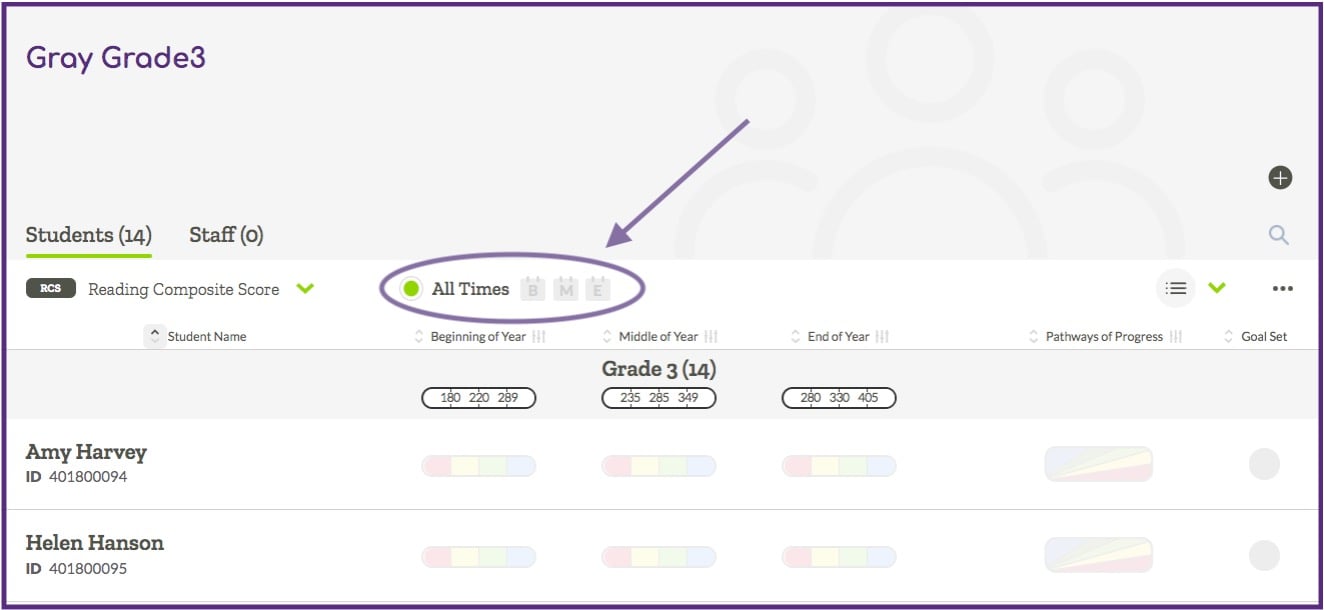
- Select the manual score entry icon (on the right side of the screen) for the student you would like to enter scores for. Note: in order for the manual score entry icon to display your device must be in a landscape orientation.
- After you select the manual score entry option, the data entry fields will display on the screen.
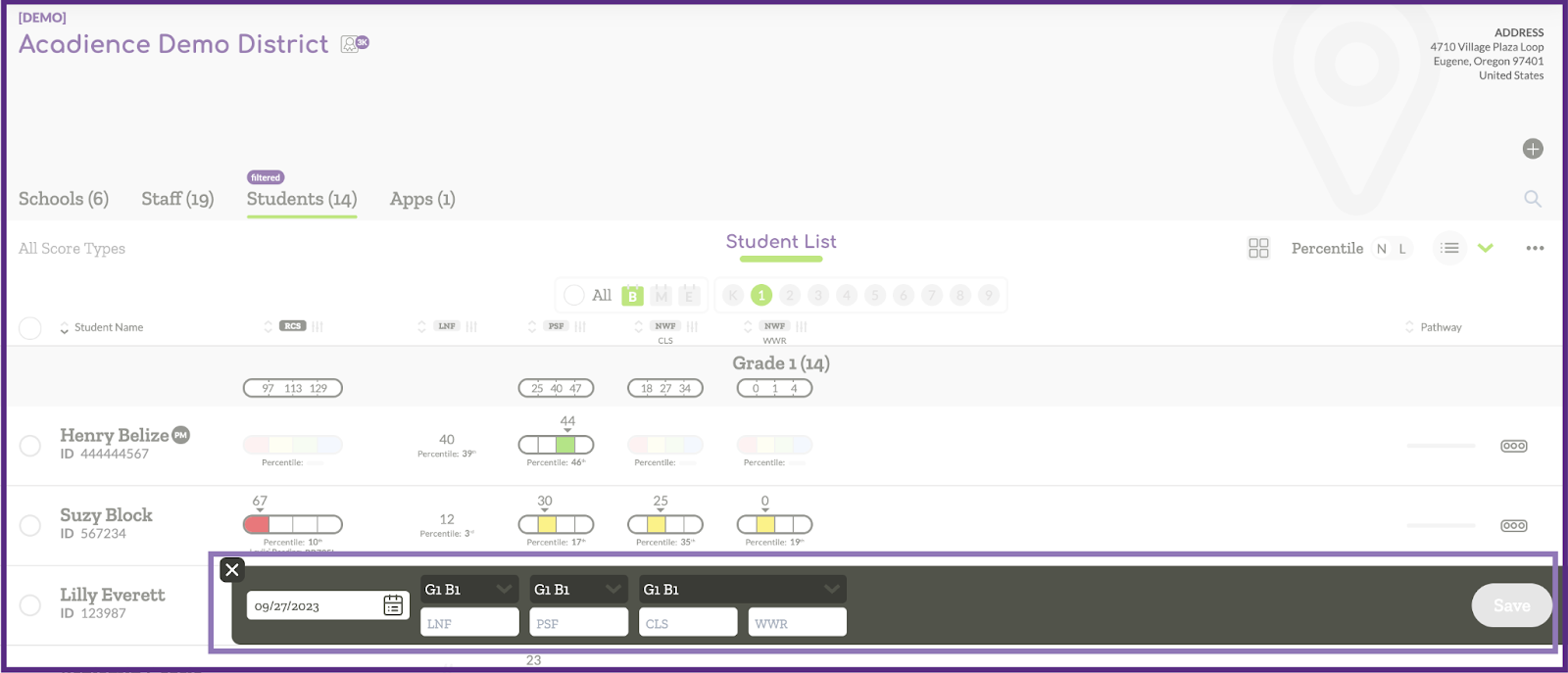
- Select the testing date and enter the scores (note that you can tab to the next box in order to save time). After all of the information has been entered, the Save button will illuminate in purple. Click Save.
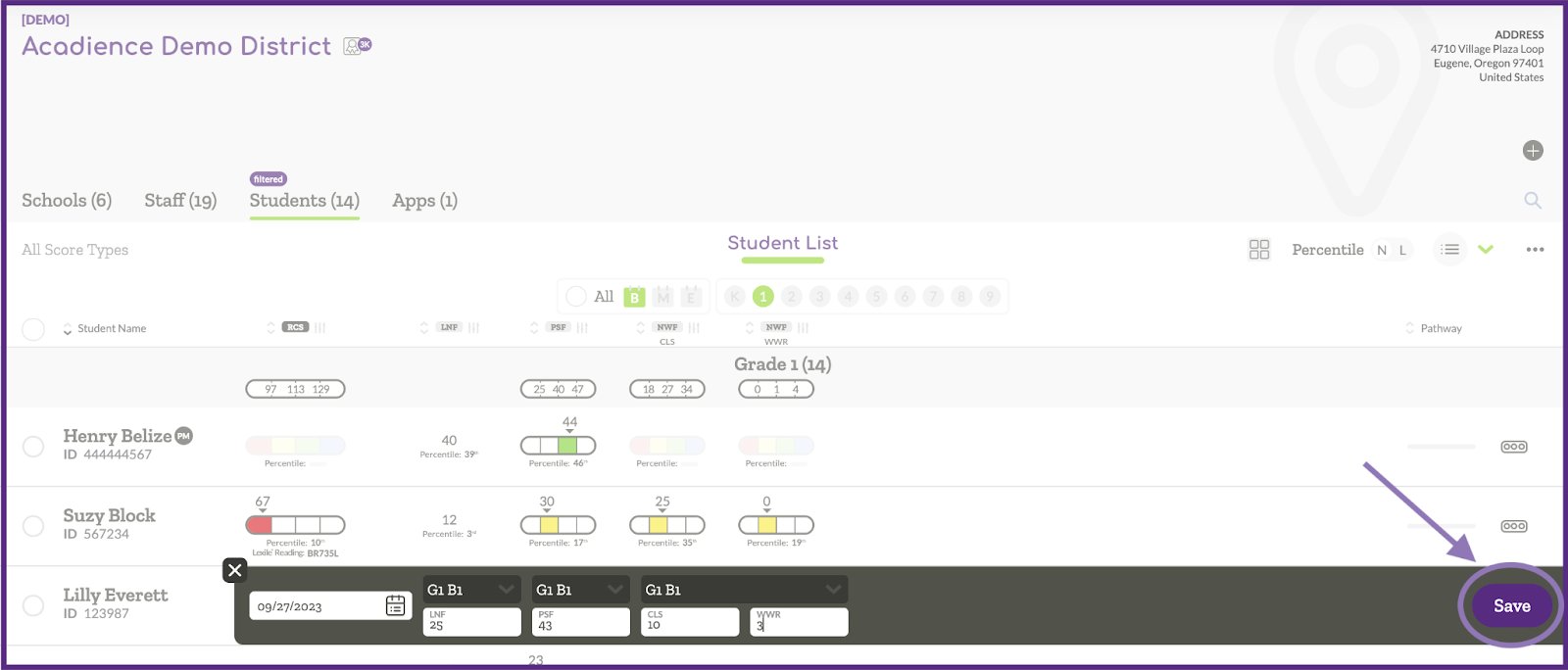
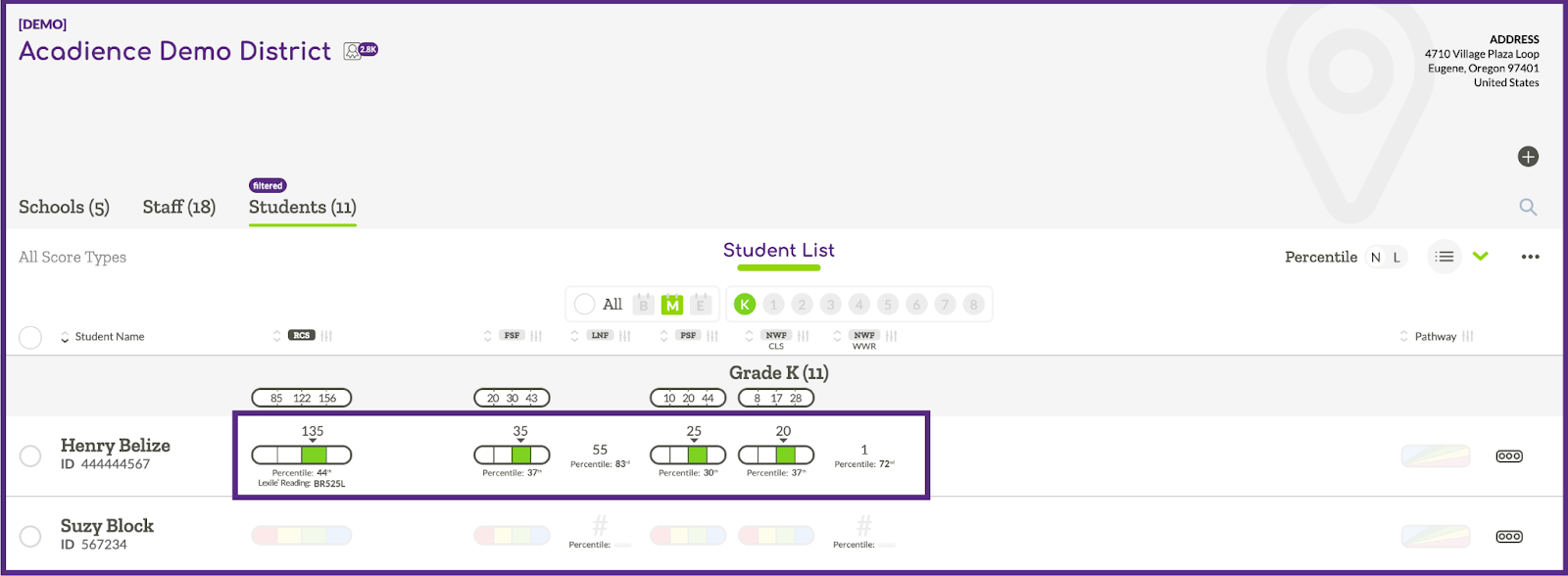
- After the score information has been saved, the scores will instantly display in the class list. Scores can be entered for additional students by repeating the steps listed above.
Manual Benchmark Score Entry – RAN
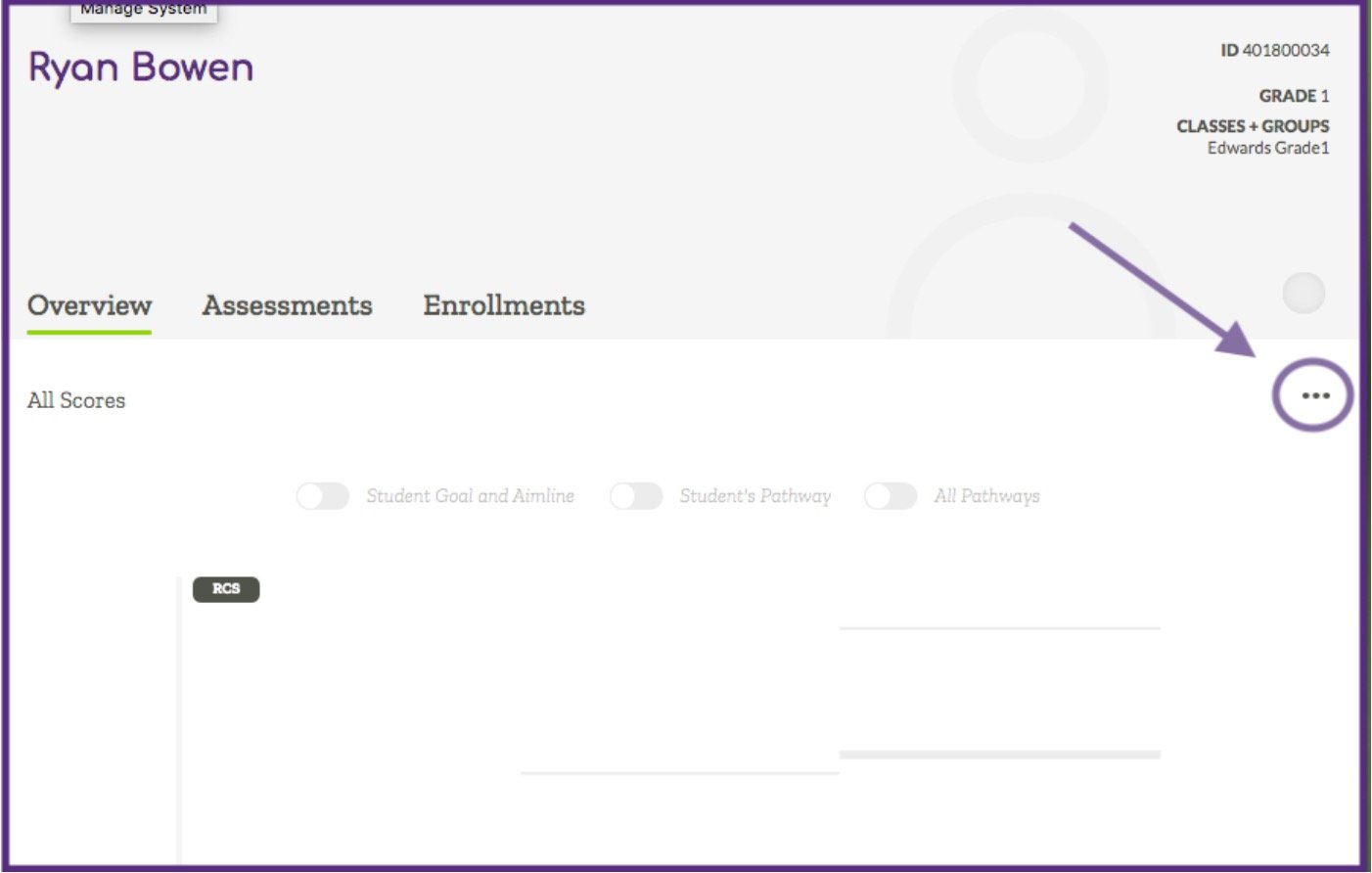
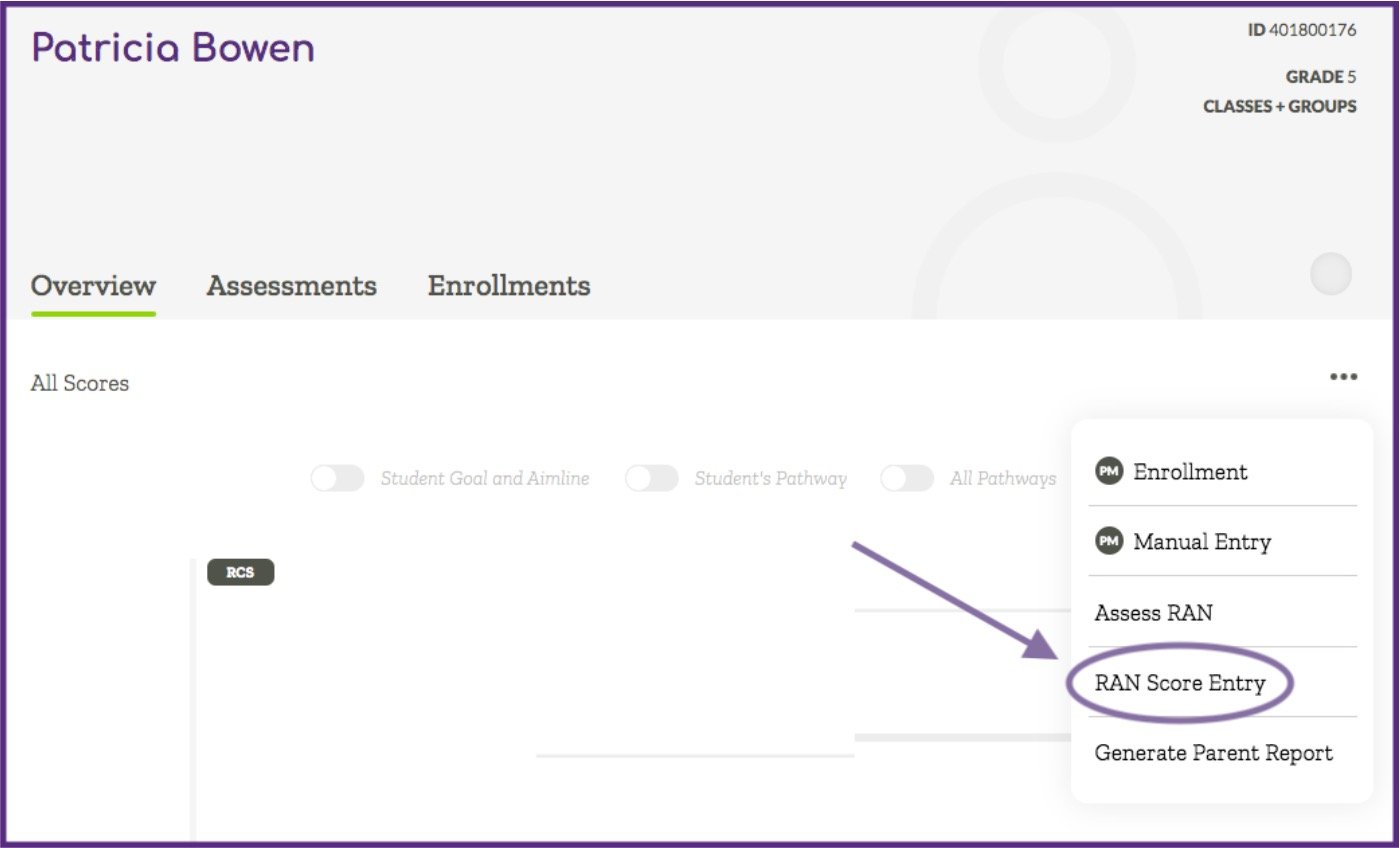
Manual benchmark score entry for Acadience RAN is available from the Student View page. To access this option, first navigate to a Student View page and then click on the 3-dot menu. In the dropdown list you will find an option for manual RAN Score Entry.