

How to Administer Digital Assessments
To administer digital assessments, ensure that you are logging in to the Acadience Learning Online (ALO) PWA on a supported touchscreen device. Verify that you are in full screen mode.
After logging in to ALO on a touchscreen device, click the Assess tab in the top right corner.
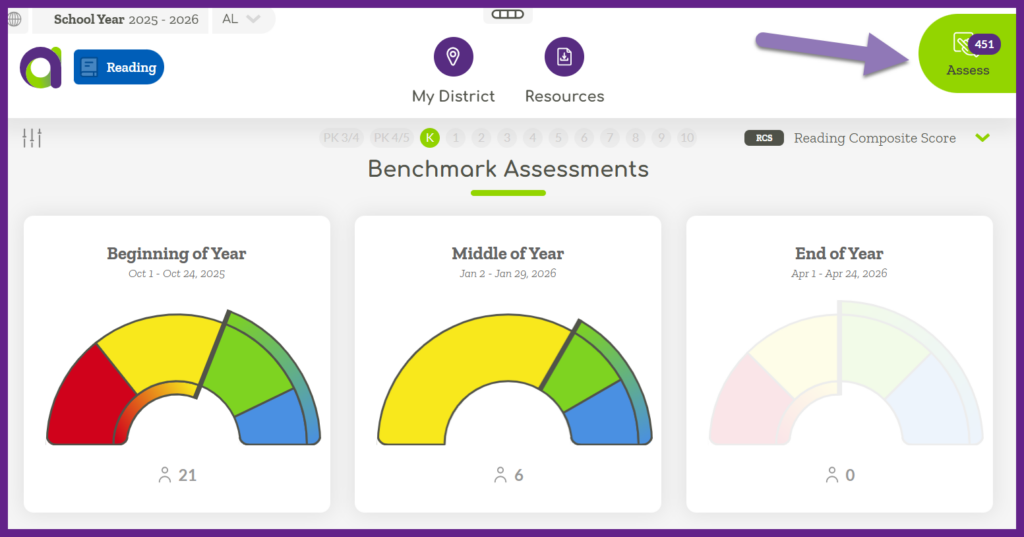
Within the Assess Sidebar you can administer Benchmark or Progress Monitoring assessments. The white background indicates which assessment is selected. Select which assessment type you would like to administer.
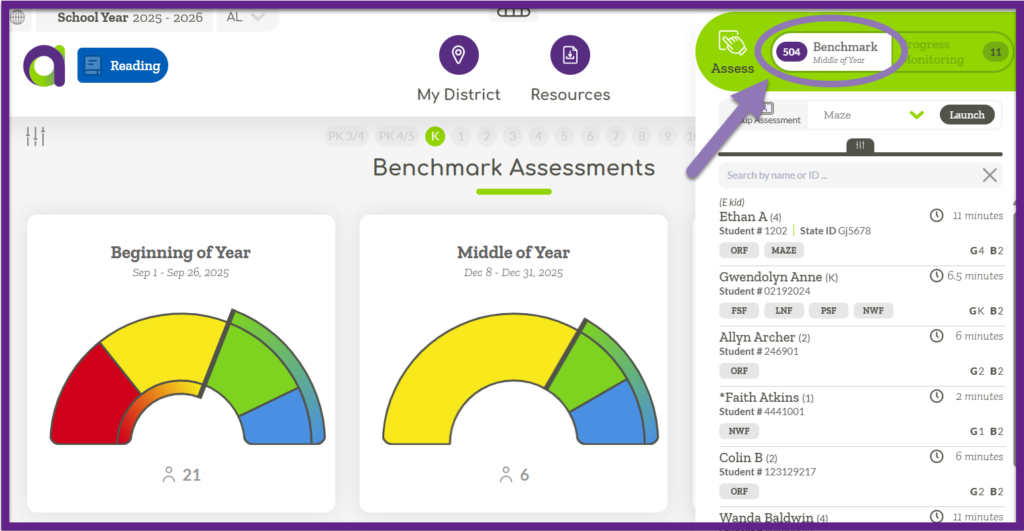
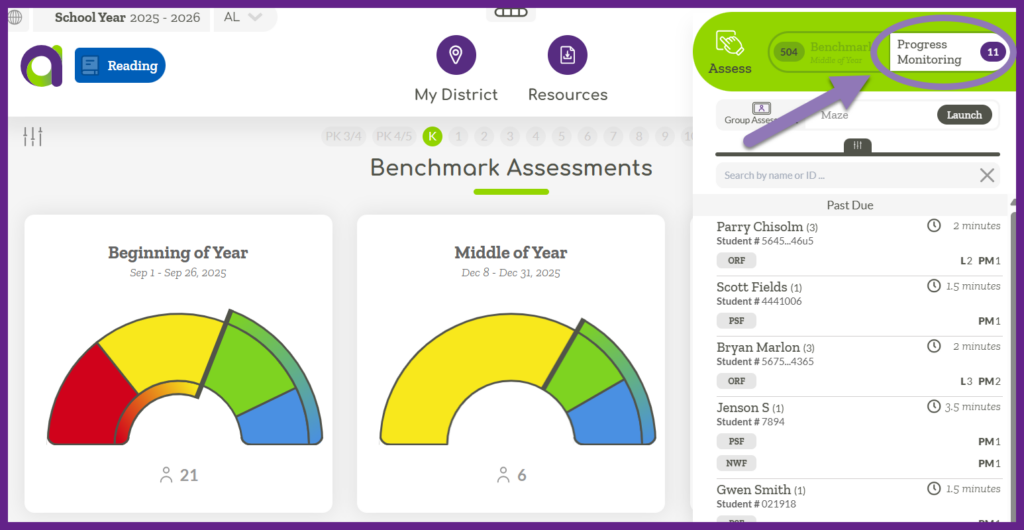
Find the name of the student that you want to assess on the list. The box for the student contains relevant information. Under the student’s name the measure(s) that are due to be administered are listed. On the top right hand side the amount of time it will take to complete the assessment is provided. On the bottom right hand corner the forms that will be used are listed.

Ensure that you have the corresponding student facing materials available. Note that not all measures require student facing materials (FSF, PSF). For Benchmark assessments the G indicates grade level, and the B indicates which benchmark form [1- Benchmark 1 (BOY), 2 – Benchmark 2 (MOY), 3 – Benchmark 3 (EOY)]. For Progress Monitoring the number after L indicates which grade level material is needed and the number after PM indicates which progress monitoring form to use.
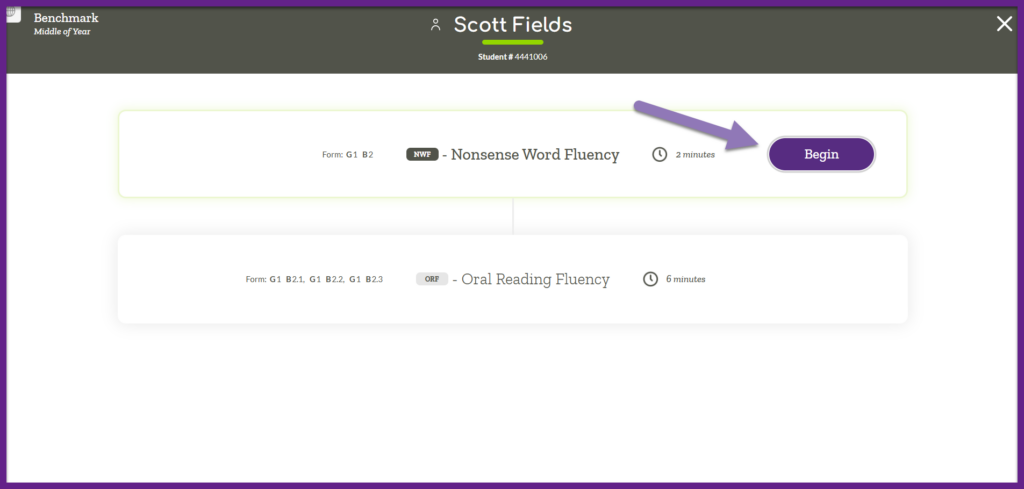
Click on the student that you want to assess. ALO will display the measure(s) that are due for the selected student and default to starting with the first measure. It is recommended that the Benchmark measures are administered in the order they appear in ALO. If it is necessary to administer in a different order you can click on any of the listed measures to select a different measure to start with. Click Begin.
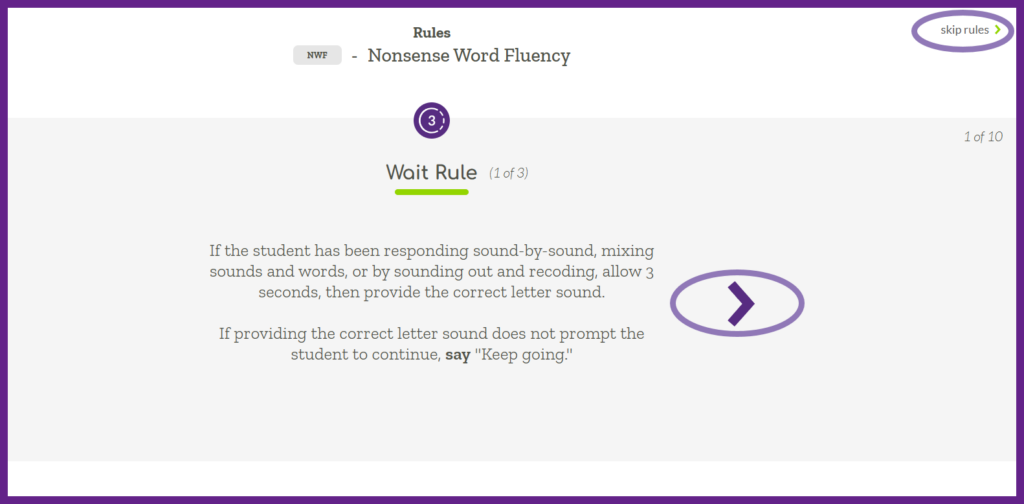
Rules and reminders are displayed for you to review. Click the purple arrows to scroll through and at the end click the “Next” button. Alternatively, in the top right corner you can click ‘skip rules’ to move past this section.
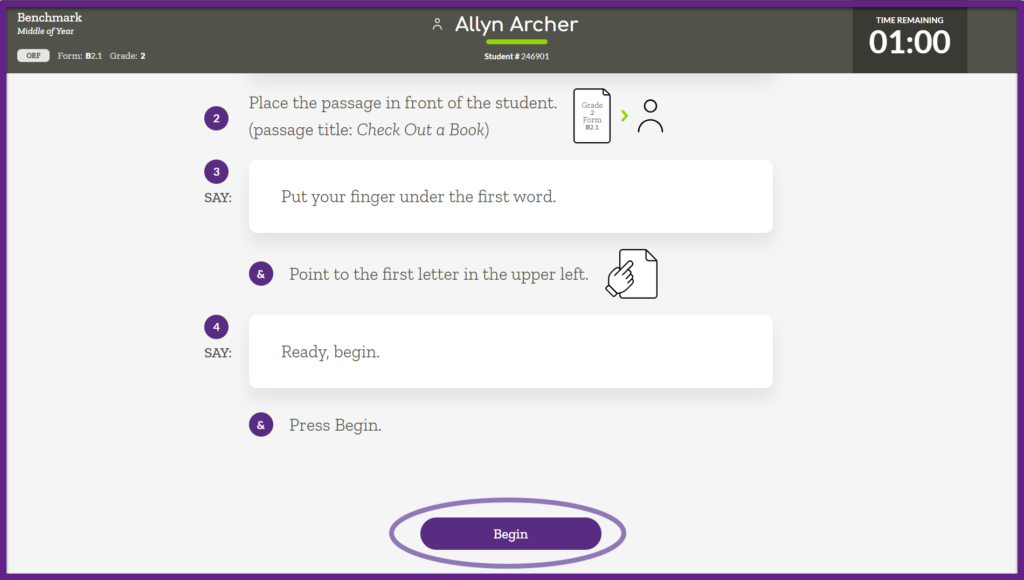
Follow the script that is displayed on the screen, ensuring you follow the prompts and read the text aloud verbatim. When prompted, click “Begin Practice Assessment” or “Next” at the bottom of the page. Follow all of the instructions until you reach the “Begin” button. Clicking the “Begin” button starts the assessment for all Acadience Reading K-6 and Acadience Math K-6 measures except Oral Reading Fluency (ORF). The timer for ORF administration begins when the student reads the first word and you mark the response in ALO.
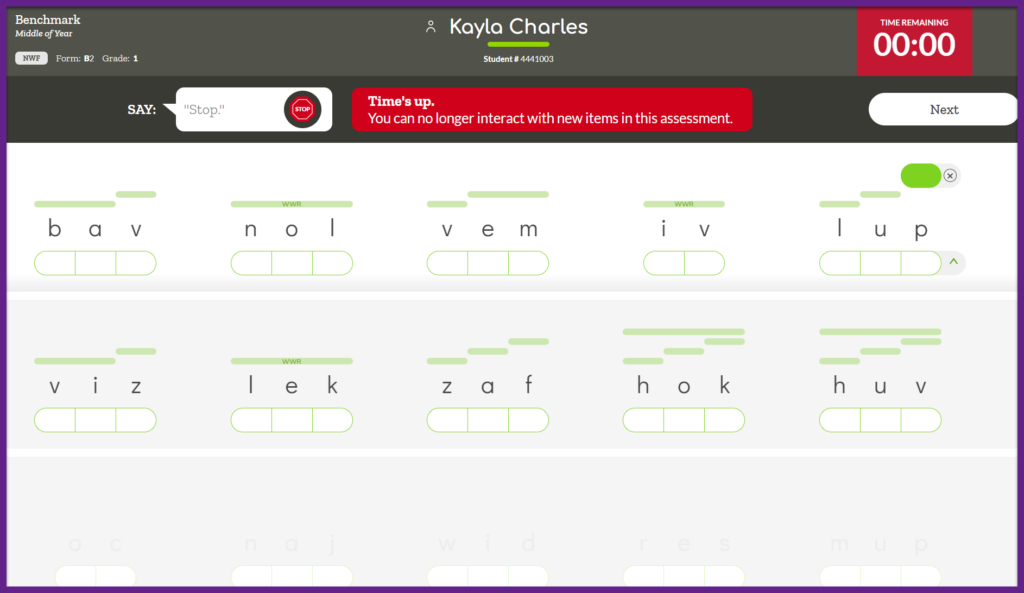
When time is up you can no longer interact with new items in the assessment. You can scroll up to previously marked responses and edit any of the existing scoring marks. Once you have reviewed the responses and everything is accurate click “Next” in the top right corner.
Mark if any accommodations were used. You must select either “Yes” or “No” in order to proceed. If “Yes” is selected, you must mark any accommodation that was used. At least one option must be selected, and multiple selections are permitted.
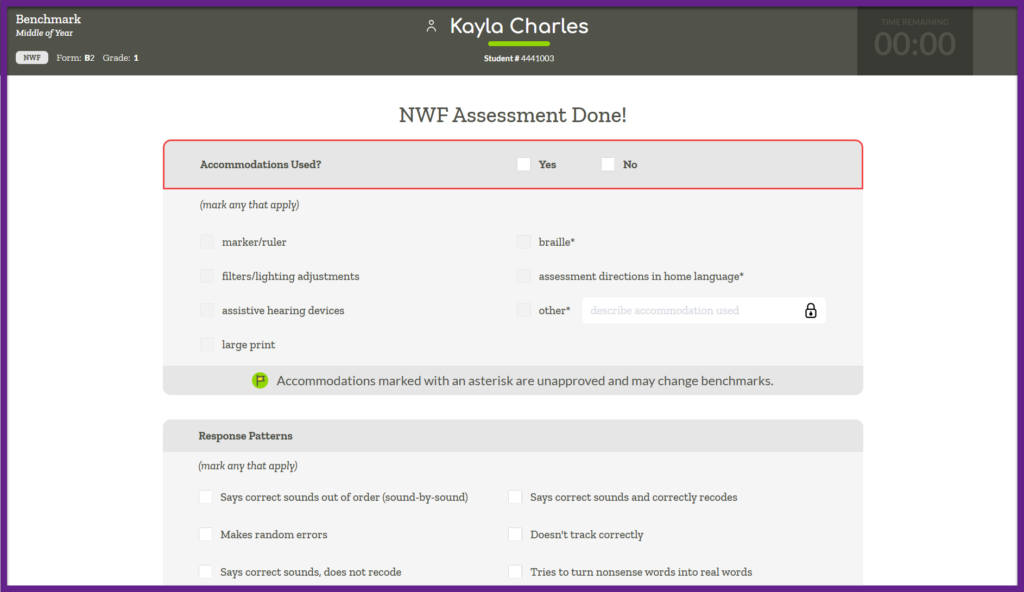
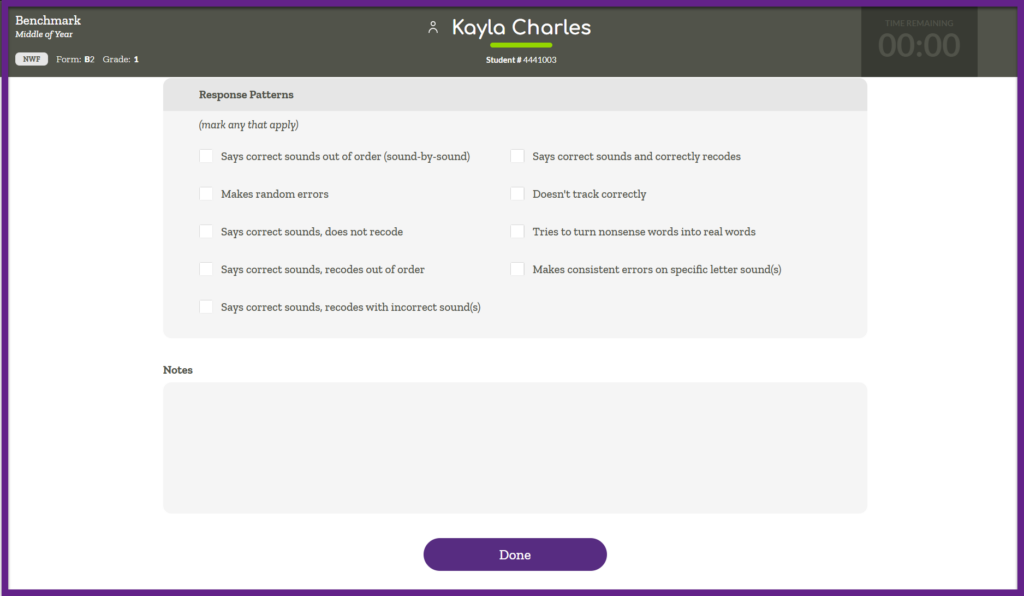
You have the option to mark any Response Patterns and to leave any notes that were not captured in the response patterns listed. Click “Done” at the bottom of the screen.
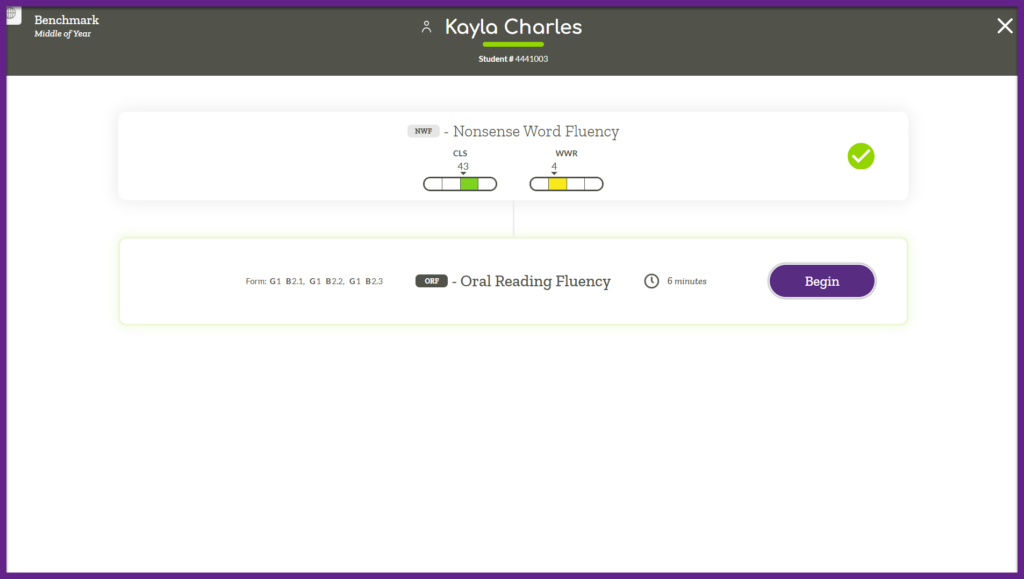
The assessment results are displayed for you to review. If there are no additional measures to administer you will click “Close.” If another measure is due for administration click on that measure and then click the “Begin” button. You will then continue to follow the prompts and administer the remaining assessments.
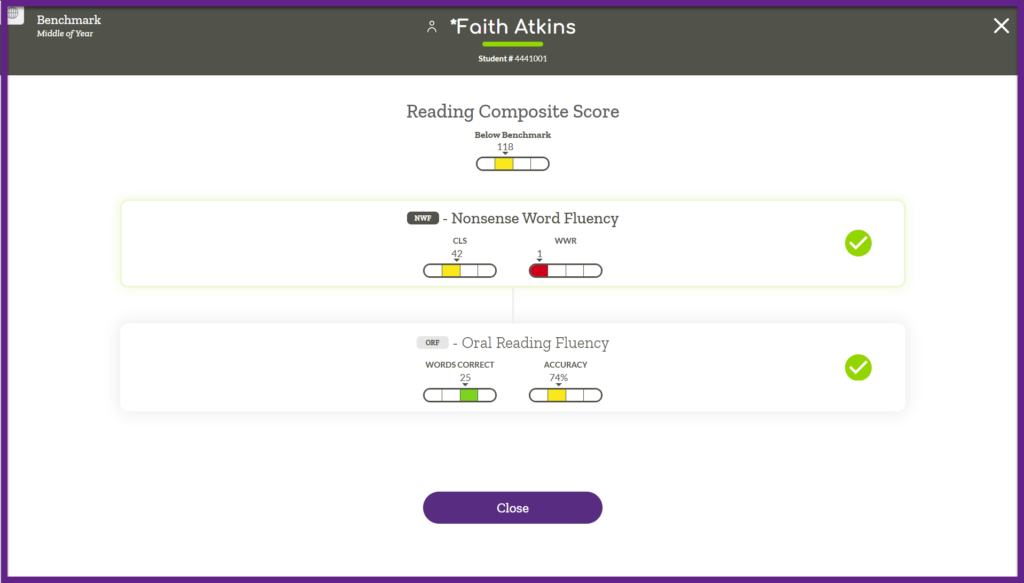
When the last Benchmark assessment is complete ALO will display the Reading or Math Composite score and all of the measure level scores for you to review. When you are finished reviewing, click “Close.” You will then be taken back to the previous screen you were on in ALO.
You can find information about training resources for digitally scoring Acadience assessments in this article.
Here are links to additional information regarding digital administration for various assessments and measures: